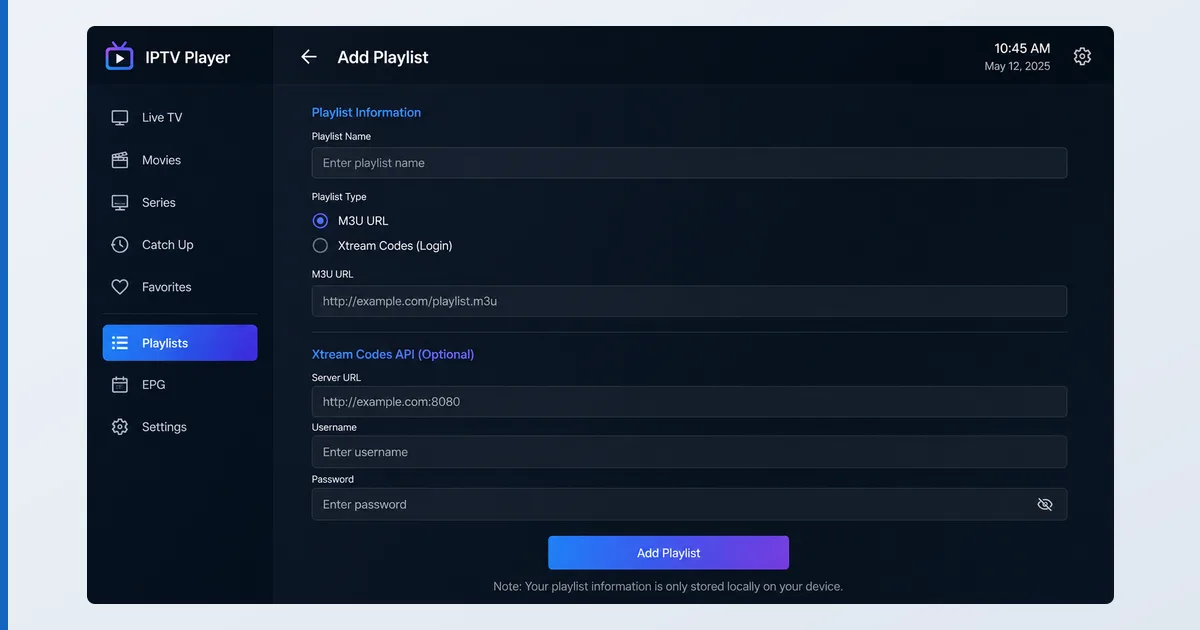
To add an M3U playlist, open your IPTV player, choose “add playlist”, paste the M3U URL or Xtream Codes login from your provider, and let it load the channel list and EPG. The playlist comes from a service you subscribe to — it contains no content itself, and no player includes any. This neutral technical guide shows the exact steps in TiviMate, IPTV Smarters, OTT Navigator and VLC, plus a troubleshooting table. For background, see what an M3U playlist is.
Before You Start
You need a playlist from your provider and a player. The playlist is the only thing that supplies channels — the player is a neutral tool.
| You need | Detail |
|---|---|
| Playlist | An M3U URL/file or Xtream Codes login from your provider |
| EPG (optional) | An XMLTV EPG URL, if the provider offers one |
| Player | TiviMate, IPTV Smarters, OTT Navigator, VLC, etc. |
| Device | Fire TV, Android TV, phone, or PC |
Adding a Playlist in Each Player
TiviMate
- Open TiviMate → Add playlist.
- Choose Enter URL (M3U) or Xtream Codes.
- Paste the M3U link, or enter the Xtream server, username and password.
- Add an EPG source if provided, and let it load. See our TiviMate review.
IPTV Smarters
- Open IPTV Smarters → Add New User.
- Choose Login with Xtream Codes API or Load Your Playlist or File/URL.
- Enter the details and load. Works the same on iOS and Android.
OTT Navigator
- Open OTT Navigator → Add playlist.
- Select M3U URL or Xtream Codes and enter your details.
- Add the EPG URL and load. See our OTT Navigator review.
VLC
- Open VLC → Open Network Stream (or Open File for an
.m3u). - Paste the playlist URL and play. Note: VLC has no EPG or channel grid, so it’s best for testing a playlist — see our VLC review.
The same playlist loads into every player — only the menu names differ.
| Player | Menu option | What you enter |
|---|---|---|
| TiviMate | Add playlist | Enter URL (M3U) or Xtream Codes, plus an EPG source if provided |
| IPTV Smarters | Add New User | Login with Xtream Codes API, or Load Your Playlist or File/URL |
| OTT Navigator | Add playlist | M3U URL or Xtream Codes, plus the EPG URL |
| VLC | Open Network Stream (or Open File for an .m3u) | The playlist URL — no EPG, best for testing |
M3U vs Xtream Codes
Both point your player at the same provider. An M3U is a direct playlist URL or file. Xtream Codes uses a server address plus username and password, and often gives a cleaner EPG, catch-up and VOD layout. If your provider offers both, an Xtream login is usually the tidier choice — but either works, and the channels are identical because they come from the same source.
Troubleshooting
| Problem | Likely cause | Fix |
|---|---|---|
| Playlist won’t load | Wrong/expired URL | Re-copy the exact link from your provider |
| “Connection limit” error | Playing on another device | Close the playlist elsewhere; check your plan |
| No programme guide | No EPG source added | Add the provider’s XMLTV EPG URL |
| Channels buffer | Slow connection / server load | Wire up; test at a different time |
| Some channels dead | Provider-side issue | Contact your provider — not a player fault |
The Bottom Line
Adding an M3U playlist is the same everywhere: get the M3U or Xtream login from your provider, open your player’s add-playlist option, paste it in, add an EPG if offered, and load. The player is a neutral tool — the channels come entirely from the service you subscribe to. For the best daily experience, use a dedicated player like TiviMate or OTT Navigator; keep VLC for quick tests. Learn the background in what an M3U playlist is and Xtream API explained, pick hardware in our best device for IPTV players guide, and look up any term in the streaming glossary.