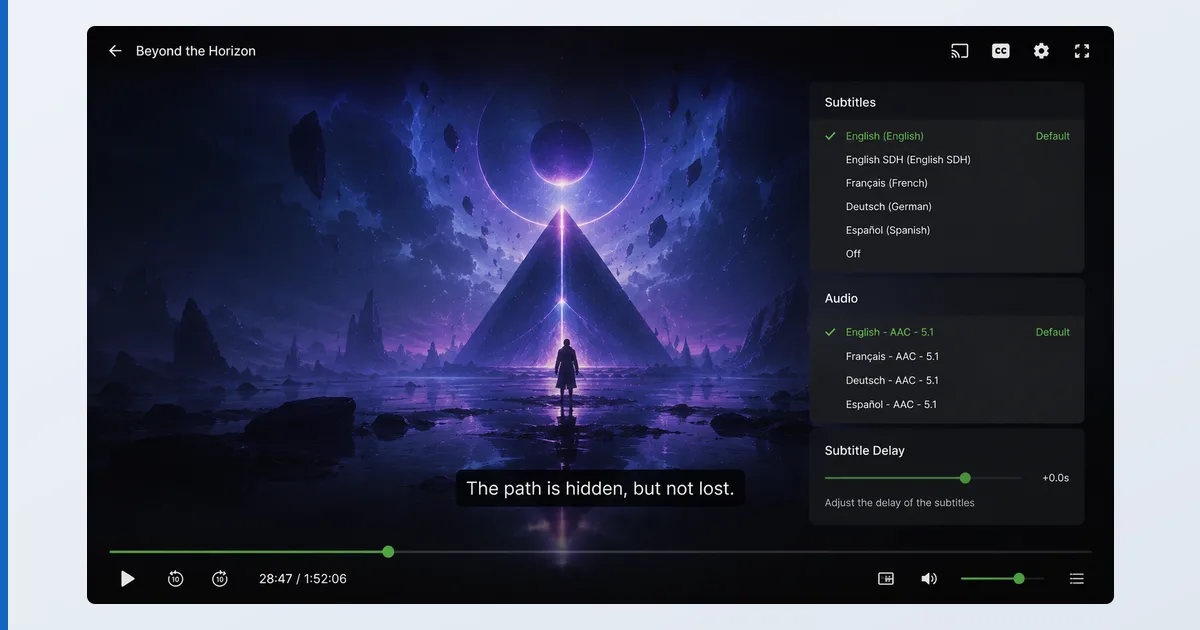
To set up subtitles, either drop a matching .srt file next to your video with the same filename, or download subtitles in-app, then use your player’s sync control to align them and set encoding to UTF-8 to avoid garbled characters. This works across Plex, Kodi, VLC and Infuse. This guide covers adding, downloading, syncing and fixing subtitles, plus which formats to use, with a troubleshooting table. It pairs with our video codecs explainer.
Before You Start
You need a subtitle source and a player that supports them (most do):
| You need | Detail |
|---|---|
| Subtitle file | An .srt (or .ass) matching your video, or an in-app downloader |
| Player | Plex, Kodi, VLC, Infuse, etc. |
| Encoding | UTF-8 for correct accented/non-Latin characters |
| Languages | Your preferred subtitle languages set in the player |
Adding Subtitles (by Player)
Plex
- Place a matching
.srtnext to the video, or set a subtitle agent to download automatically. - During playback, open the subtitle menu and pick the track. Set default languages in Settings. See our Plex review.
Kodi
- Install an official subtitle add-on from the official repository.
- During playback, open subtitles → Download, or load a local file. Set preferred languages.
VLC
- Drag an
.srtonto the video, or Subtitle → Add Subtitle File. - Sync with G / H keys; set encoding under Subtitles/OSD. See our VLC review.
Infuse
- Infuse auto-downloads subtitles for your media, or load a file.
- Adjust sync and styling in the playback menu. See our Infuse review.
Formats and Encoding
- SRT — the most compatible; plain text, works everywhere. Use this by default.
- ASS/SSA — supports styling and positioning (anime, karaoke); not always fully rendered.
- PGS/VobSub — image-based subtitles from discs/rips; can’t be re-styled.
- Encoding — set UTF-8 to display accented and non-Latin characters correctly.
Troubleshooting
| Problem | Likely cause | Fix |
|---|---|---|
| No subtitles appear | Track not selected/loaded | Pick the track or add the .srt file |
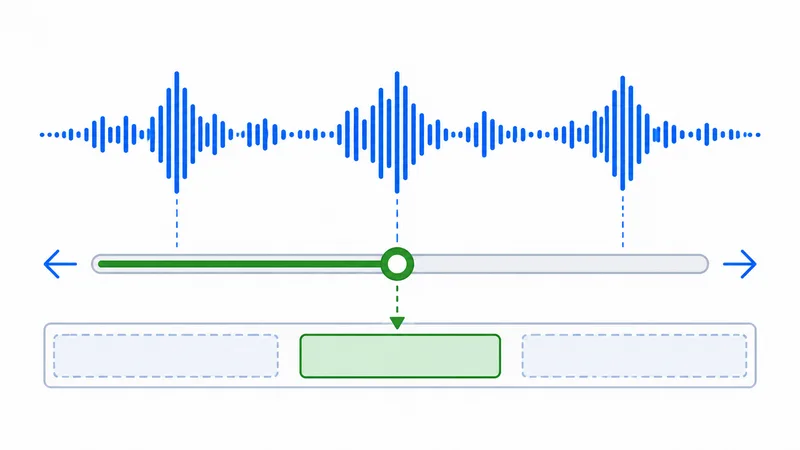
| Subtitles out of sync | Fixed offset | Use the subtitle delay control |
| Sync drifts over time | Wrong video version | Download subtitles for your exact file |
| Garbled characters | Encoding | Set encoding to UTF-8; re-save the file |
| Wrong language auto-picked | Language preference | Set preferred subtitle languages |
The Bottom Line
Subtitles come down to three things: get a matching file (or auto-download), sync it with the delay control, and set UTF-8 encoding to avoid garbled text. SRT is the safest format, and Plex, Kodi, VLC and Infuse all handle the basics well — VLC and Infuse are especially strong. Understand the tech in our video codecs explainer, set up your server with the Plex setup guide, and look up any term in the streaming glossary.