To set up Plex, install the Plex Media Server on an always-on computer or NAS, add and name your media folders, sign in, and enable remote access — then stream your library to Plex apps on any device. The whole home setup is free; only power features need Plex Pass. This guide covers the hardware you need, organising your library for clean metadata, remote access, and keeping playback on direct play. For the full app assessment, see our Plex review.
Before You Start
You need a media server host that stays on, storage for your files, and a reliable network. Here’s the baseline:
| Component | Minimum | Recommended |
|---|---|---|
| Host | PC, Mac or NAS, always on | Dedicated NAS or mini-PC |
| CPU | Modest (direct play) | Capable CPU/GPU (transcoding) |
| Storage | Enough for your media | NAS with redundancy (RAID) |
| Network | Wi-Fi | Wired Ethernet to the server |
| Account | Free Plex account | Plex Pass for hardware transcode |
Step-by-Step
- Install the Plex Media Server. Download it for your host (Windows, macOS, Linux, Synology, QNAP) and install. Run it on the machine that stores or reaches your media.
- Sign in. Create or log in to a free Plex account — this links your server to the apps.
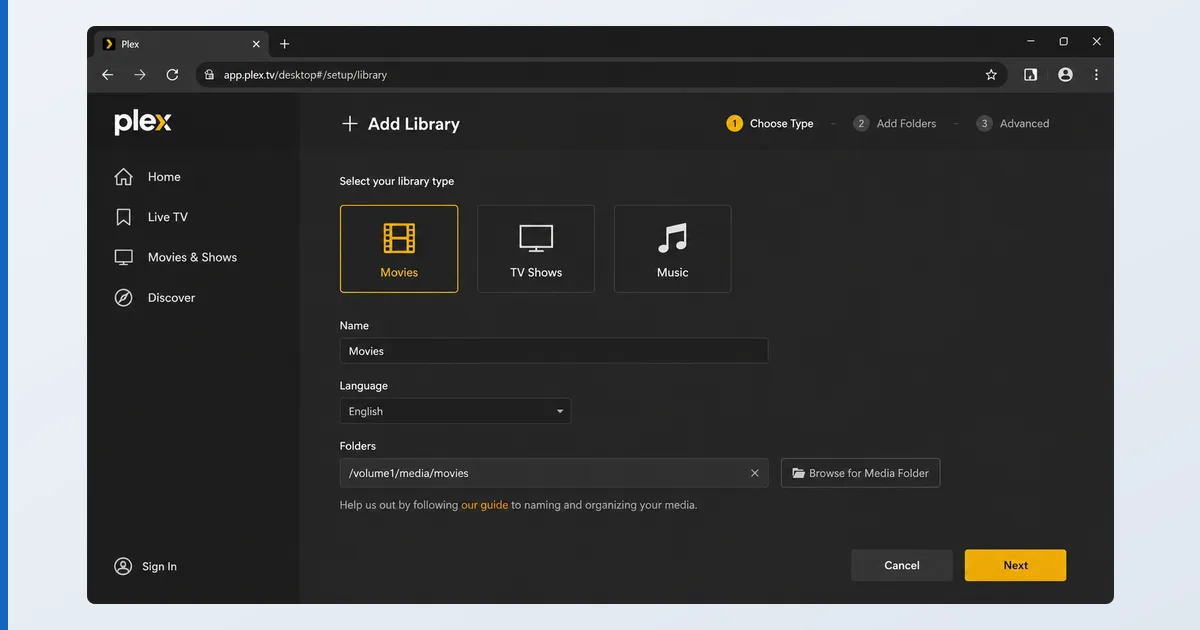
- Add your libraries. Create separate Movies and TV Shows libraries and point each at its folder. Name files cleanly —
Film (Year)andShow/Season 01/Show - S01E02— so Plex matches them correctly. - Let Plex scan and match. It fetches artwork, descriptions and subtitles. Fix any mismatches with “Fix Match”.
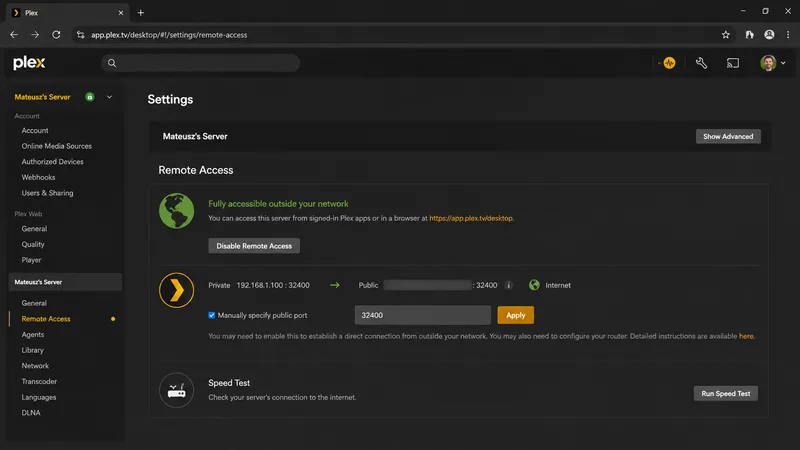
- Enable remote access. In Settings → Remote Access, turn it on. If it doesn’t connect, forward port 32400 on your router or enable UPnP.
- Test on a client. Open a Plex app on your TV device and confirm playback — ideally direct play, not transcoding.
Direct Play vs Transcoding
The key to smooth Plex is direct play: when a client can play your file as-is, the server barely works. Transcoding — converting on the fly for an incompatible device or slow connection — is CPU-heavy, and hardware acceleration needs Plex Pass. Store device-friendly formats (H.264/HEVC MP4/MKV) and most playback stays direct, keeping even a modest server smooth.
Troubleshooting
| Problem | Likely cause | Fix |
|---|---|---|
| Server not found | Not on same network / firewall | Check the host is on; allow Plex through the firewall |
| Wrong artwork/title | File naming | Rename to Title (Year); use Fix Match |
| Remote access fails | Port not forwarded | Forward port 32400 or enable UPnP |
| Buffering | Transcoding or slow link | Store compatible formats; wire up; add Plex Pass |
| No 4K / hardware transcode | No Plex Pass | Subscribe to Plex Pass for hardware acceleration |
The Bottom Line
Setting up Plex is straightforward: install the server on an always-on host, add cleanly named libraries, enable remote access, and confirm direct play on your devices. Keep media in device-friendly formats and a modest machine runs it smoothly; add Plex Pass only if you need hardware transcoding or DVR. See the full Plex review, compare it with the free alternative in Plex vs Jellyfin, pick hardware in our best device for Plex guide, understand the tech in our transcoding explainer, and look up any term in the streaming glossary.