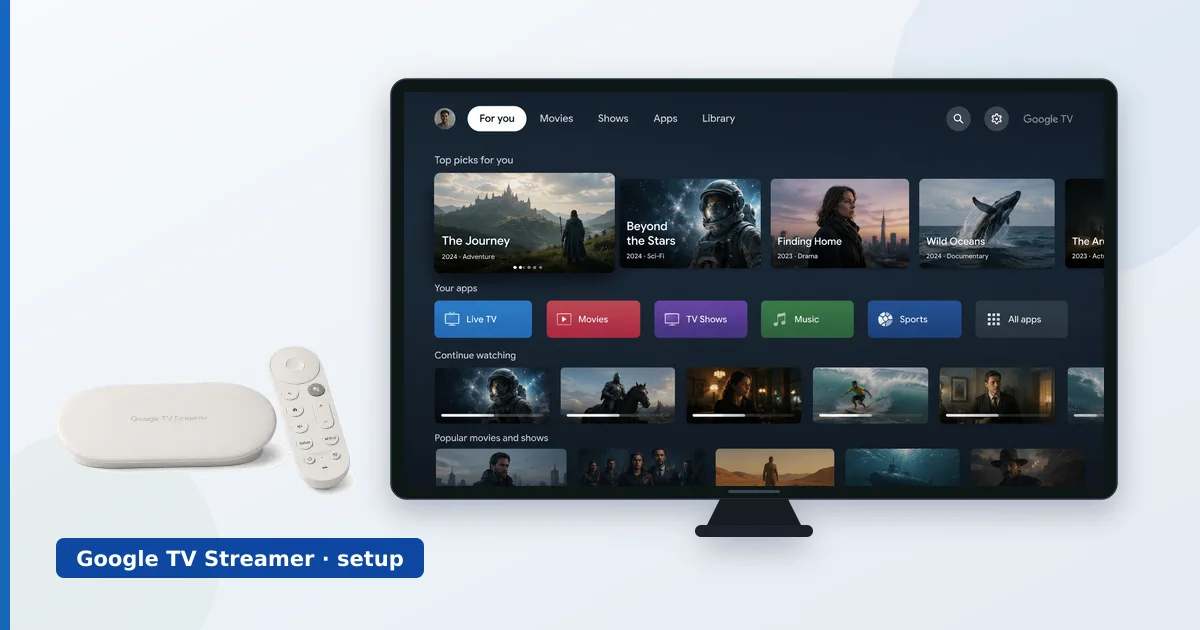
Setting up a Google TV device takes about ten minutes: connect it, sign in with your Google account, install apps, enable HDR and Atmos, and build your watchlist. This step-by-step guide covers the whole process on the Google TV Streamer or a Chromecast with Google TV, plus a troubleshooting table. For a full assessment, see our Google TV Streamer 4K review.
Before You Start
You will need:
- A Google TV Streamer or Chromecast with Google TV, its remote and power.
- A High Speed HDMI cable for 4K HDR.
- Your Google account and Wi-Fi password (or an Ethernet cable).
- Optionally, the Google Home app on your phone to speed things up.
Step-by-Step Setup
- Connect the hardware. Plug the device into an HDMI port and power, and select that input on your TV.
- Choose language and network. Pick your language, then join Wi-Fi or plug in Ethernet (built in on the Streamer).
- Sign in with Google. Enter your account, or use the Google Home app to transfer it and your Wi-Fi automatically.
- Install your apps. Download the streaming apps you use from the Play Store and sign in.
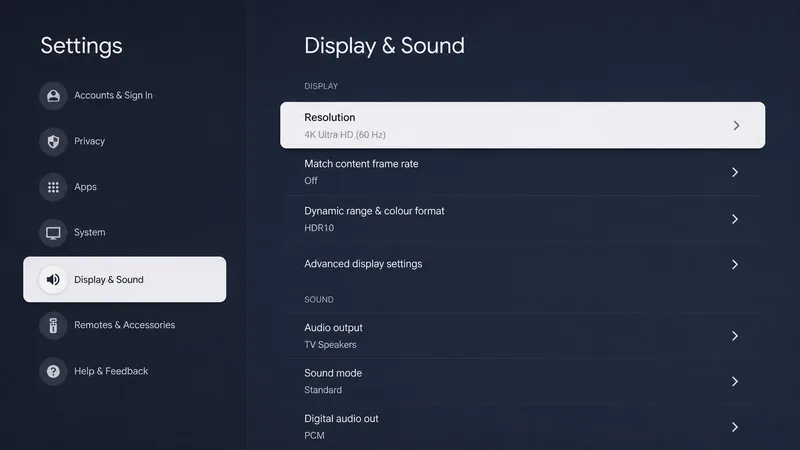
- Enable HDR and Atmos. In display and sound settings, set resolution and HDR, and enable Dolby Atmos passthrough.
- Build your watchlist. Add titles from the home screen or with Google Assistant so they appear in your watchlist row.
Tip: the Google TV Streamer has built-in Ethernet — wire the main TV for the steadiest 4K streaming. On a Chromecast dongle, add an Ethernet adapter if Wi-Fi is unreliable. See Wi-Fi vs Ethernet.
Troubleshooting Common Problems
| Problem | Likely cause | Fix |
|---|---|---|
| No 4K or HDR | Cable/input limitation | Use a High Speed cable; enable the input’s full-format mode |
| No Dolby Atmos | Passthrough off | Enable Atmos in display and sound; use eARC to a soundbar |
| Watchlist not syncing | Signed into wrong account | Confirm the same Google account across devices |
| Buffering | Weak Wi-Fi | Wire it (built-in Ethernet on the Streamer) or use 5 GHz |
| Storage full (Chromecast) | Tight ~8 GB | Remove unused apps; consider the Google TV Streamer |
The Bottom Line
A Google TV device is fast to set up: connect, sign in with Google, install apps, enable HDR and Atmos, and build your watchlist for a genuinely useful cross-service home screen. On the Google TV Streamer, wire the Ethernet for the steadiest 4K; on a Chromecast, watch the tight storage. The troubleshooting table above covers the common issues.
Read our full Google TV Streamer 4K review, see it compared in Apple TV vs Google TV Streamer, and look up any term in the streaming glossary.