The fastest fix for 4K not working is to confirm your subscription includes 4K, set the device output to 2160p, and use a High Speed HDMI cable on a TV port that supports 4K and HDCP 2.2 — then check your speed clears 25 Mbps. Most 4K failures are plan, settings, cable or bandwidth. This guide lists causes by likelihood, gives graduated diagnosis steps, and includes a diagnosis table and per-device fixes. It builds on our HDMI versions and resolution guides.
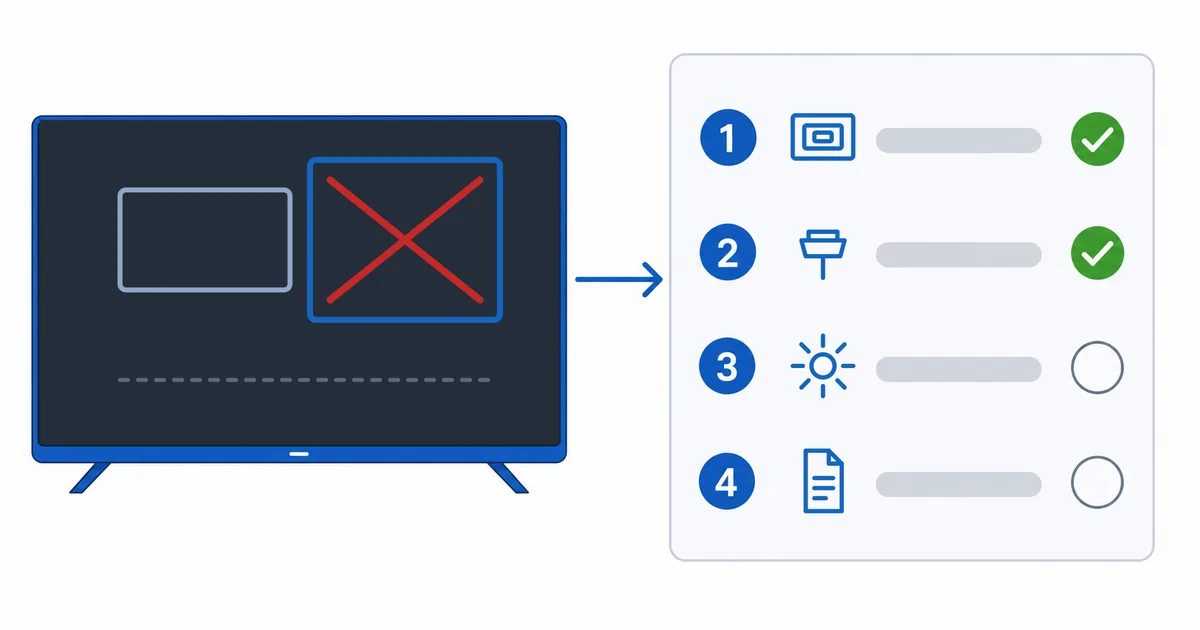
Causes, Most to Least Common
- Plan without 4K — the subscription tier simply doesn’t include UHD.
- Output/quality capped — device set below 2160p, or app on a lower quality.
- Cable or port limit — an old cable, or a TV port without 4K/HDCP 2.2.
- Not enough bandwidth — under the ~25 Mbps 4K threshold.
- Device or content limit — a non-4K device, or content not available in 4K.
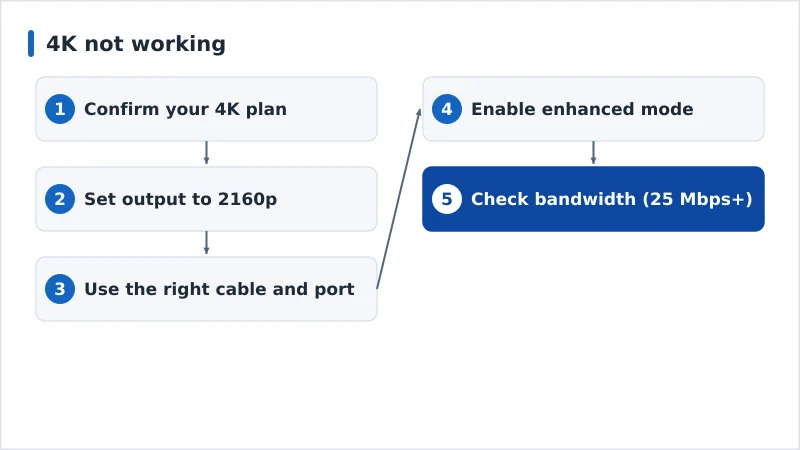
Diagnosis: Easiest First
- Confirm your 4K plan — the most common oversight.
- Set output to 2160p and the app to highest quality.
- Use the right cable and port — High Speed HDMI on a 4K/HDCP 2.2 input.
- Enable the port’s enhanced mode — many TVs need this for full 4K/HDR.
- Check bandwidth — speed-test on the device; aim for 25 Mbps+.
Diagnosis Table
| Symptom | Likely cause | Fix |
|---|---|---|
| No 4K option in the app | Plan without 4K | Upgrade to a 4K/UHD tier |
| Device outputs only 1080p | Output setting capped | Set display output to 2160p |
| 4K flickers or drops to HD | Cable/port limit | High Speed HDMI on a 4K/HDCP 2.2 port |
| TV won’t show full 4K/HDR | Port mode | Enable enhanced/full HDMI mode |
| 4K buffers to HD | Not enough bandwidth | Wire up; free bandwidth; upgrade plan |
By Device
- Fire TV / Android TV: Settings → Display → set output to 2160p; app to highest quality; use a 4K port.
- Apple TV 4K: Settings → Video and Audio → 4K; run the format test; use the correct port.
- Smart TV apps: enable the HDMI input’s enhanced mode; ensure the built-in app supports 4K on your plan.
- Any device: confirm it’s a 4K model — an HD stick can’t output 4K; see our best streaming devices guide.
The Bottom Line
4K that won’t engage is usually plan, settings, cable/port or bandwidth: confirm your subscription includes 4K, set the output to 2160p and the app to highest quality, use a High Speed HDMI cable on a 4K/HDCP 2.2 port with enhanced mode on, and clear ~25 Mbps. Understand connections in our HDMI versions guide and quality in our resolution guide; if the picture is dull, see our HDR washed out guide; check speed in our internet speed guide; and start from our streaming troubleshooting checklist, and look up any term in the streaming glossary.