The fastest fix for washed-out HDR is to select an HDR or Cinema picture mode on the TV and enable the HDMI input’s enhanced/full-colour mode (HDMI Enhanced, UHD Colour or Deep Colour) for the port your device uses. Dull HDR is almost always a TV picture-mode or HDMI colour-range setting, not the stream. This guide lists causes by likelihood, gives graduated diagnosis steps, and includes a diagnosis table and per-device fixes. It builds on our HDR explained guide, and is separate from 4K not working.
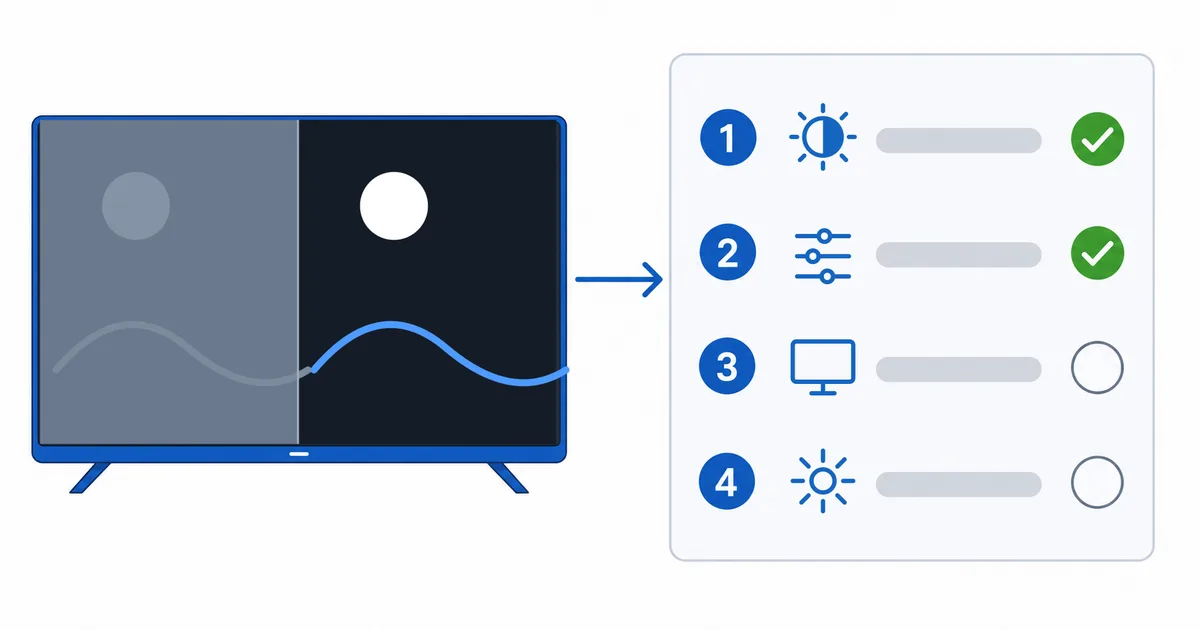
Causes, Most to Least Common
- Wrong picture mode — not in an HDR/Cinema mode, so colour and contrast are off.
- HDMI input not in full colour — enhanced/Deep Colour mode disabled on that port.
- Device-TV format mismatch — device forcing an HDR format the TV can’t map well.
- Poor tone mapping — a vivid/bright preset clipping HDR highlights.
- Low-brightness panel — a budget TV that can’t do HDR justice.
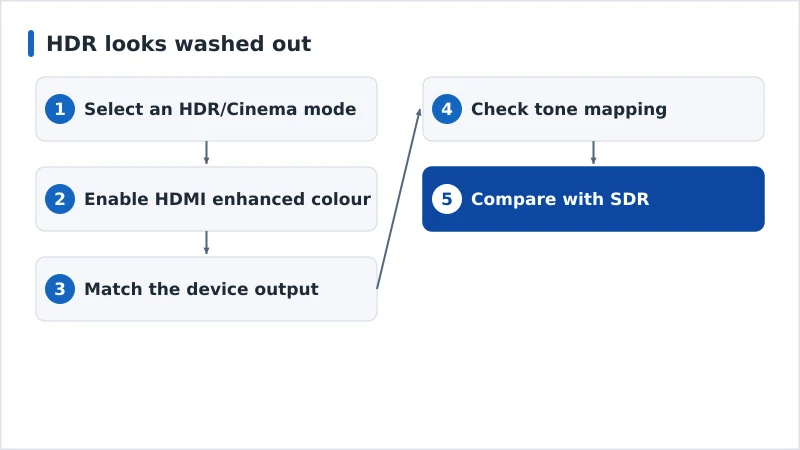
Diagnosis: Easiest First
- Select an HDR/Cinema picture mode — the number-one fix for dull HDR.
- Enable HDMI enhanced colour — turn on HDMI Enhanced / UHD Colour / Deep Colour for the input.
- Match the device output — set the device to an HDR/Dolby Vision format the TV supports.
- Check tone mapping — avoid a Vivid preset that clips; use Cinema/Filmmaker.
- Compare with SDR — on a low-brightness TV, SDR may genuinely look better.
Diagnosis Table
| Symptom | Likely cause | Fix |
|---|---|---|
| HDR looks flat/grey | Wrong picture mode | Select HDR/Cinema/Filmmaker mode |
| Dull only on one input | HDMI colour range | Enable HDMI Enhanced/Deep Colour |
| Wrong colours in HDR | Format mismatch | Set device to a TV-supported HDR format |
| Highlights clipped | Vivid preset | Switch to Cinema; check tone mapping |
| HDR worse than SDR | Low-brightness panel | Use SDR, or accept panel limits |
By Device
- Fire TV / Android TV: ensure HDR output matches the TV; enable the TV’s HDMI enhanced mode; pick a Cinema picture mode.
- Apple TV 4K: in Settings → Video and Audio, match the format; consider Match Content for HDR/frame rate.
- Smart TV apps: the TV handles HDR directly — set the correct picture mode and input colour settings.
- All TVs: turn on the input’s enhanced/full colour mode — the most common washed-out-HDR fix.
The Bottom Line
Washed-out HDR is a settings problem, not a stream problem: put the TV in an HDR/Cinema picture mode, enable the HDMI input’s enhanced/full-colour mode, and match the device’s HDR output to what the TV supports. On a low-brightness panel, HDR has limits and SDR may look better. Understand the tech in our HDR explained guide; for the resolution side, see our separate 4K not working guide; check connections in our HDMI versions guide; and start from our streaming troubleshooting checklist, and look up any term in the streaming glossary.