For the best Fire TV quality, set the display to 4K at 60Hz, enable HDR and Dolby Vision, turn on ‘match original frame rate’, tune audio for Dolby Atmos, and cut home-screen clutter. These settings give the sharpest, most accurate picture and the best sound your gear can produce, while keeping the interface fast. This guide walks through each setting and a troubleshooting table. For the device itself, see our Fire TV Stick 4K Max review.
Before You Start
You will need your Fire TV and remote, plus:
- A Premium High Speed HDMI cable for 4K HDR.
- A TV that supports 4K and HDR, ideally with Dolby Atmos audio.
- The TV input set to its enhanced / full-format mode for 4K HDR.
Best Picture Settings
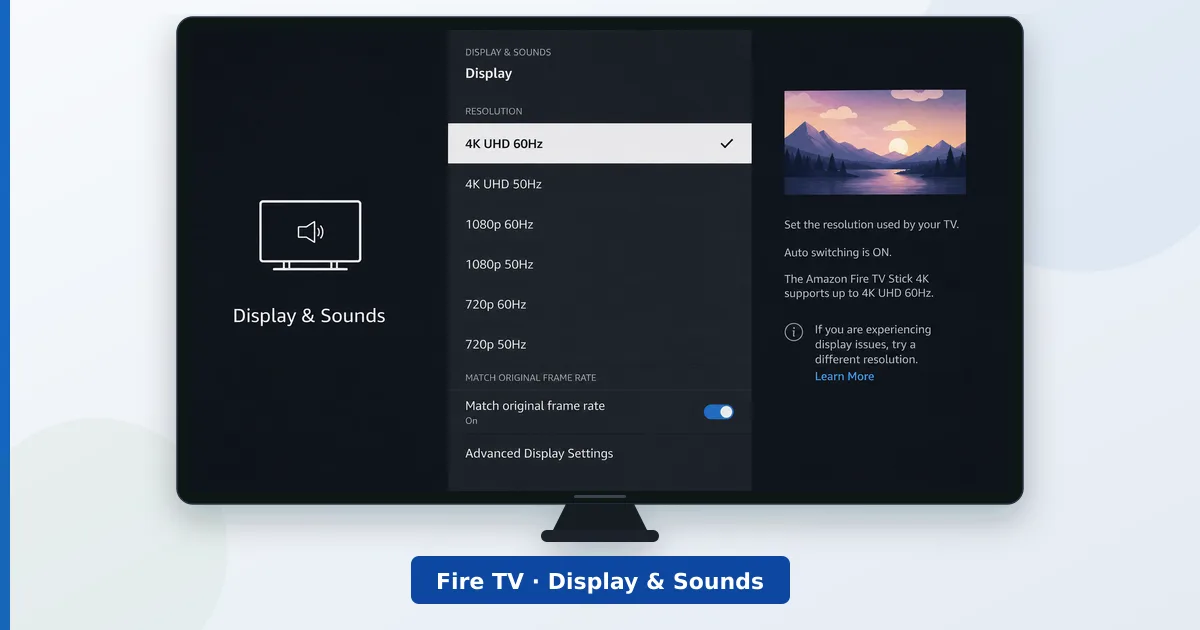
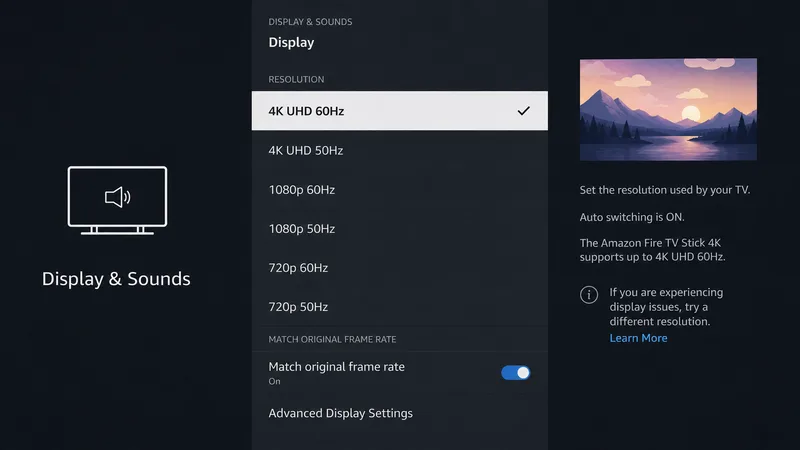
- Set resolution to 4K. Go to Settings → Display and Sounds → Display and set the resolution to 4K at 60Hz.
- Enable HDR and Dolby Vision. Confirm HDR is on; Dolby Vision is applied per title on compatible TVs.
- Match original frame rate. Turn on match original frame rate to reduce judder in films and shows.
- Set the TV picture mode. On the TV, choose Cinema or Filmmaker mode and enable the input’s full-format setting for accurate HDR.
Best Audio Settings
In Settings → Display and Sounds → Audio:
- Enable Dolby Atmos and surround passthrough if your TV or soundbar supports them.
- Use an eARC connection for the highest-quality audio to a soundbar or receiver.
- Set audio to best available / bitstream so the Fire TV passes the original format through to your system to decode.
More on formats in our streaming audio formats guide.
Keep It Fast
A lighter interface performs better:
- Turn off featured content auto-play in Settings → Preferences → Featured Content.
- Remove unused apps from the favourites row and disable notifications.
- For a deeper tidy-up, see free up storage and speed up a slow Fire TV Stick.
Troubleshooting
| Problem | Likely cause | Fix |
|---|---|---|
| No 4K or HDR option | Cable/input limitation | Premium High Speed cable; enable full-format input mode |
| Judder in films | Frame rate not matched | Turn on match original frame rate |
| HDR looks washed out | Wrong TV picture mode | Use Cinema/Filmmaker; check brightness |
| No Dolby Atmos | Passthrough off | Enable Atmos/surround; use eARC |
| Interface feels slow | Clutter/background activity | Turn off featured content; remove apps |
The Bottom Line
The best Fire TV quality comes from a few settings: 4K at 60Hz, HDR and Dolby Vision on, match original frame rate, Dolby Atmos passthrough, and a Cinema or Filmmaker mode on the TV. Cut the home-screen clutter to keep it fast. Pair these with a Premium High Speed cable and a full-format HDMI input, and your Fire TV delivers the sharpest picture and best sound it can.
Wire it for stability with our Ethernet on Fire TV guide, read the full Fire TV Stick 4K Max review, and look up any term in the streaming glossary.