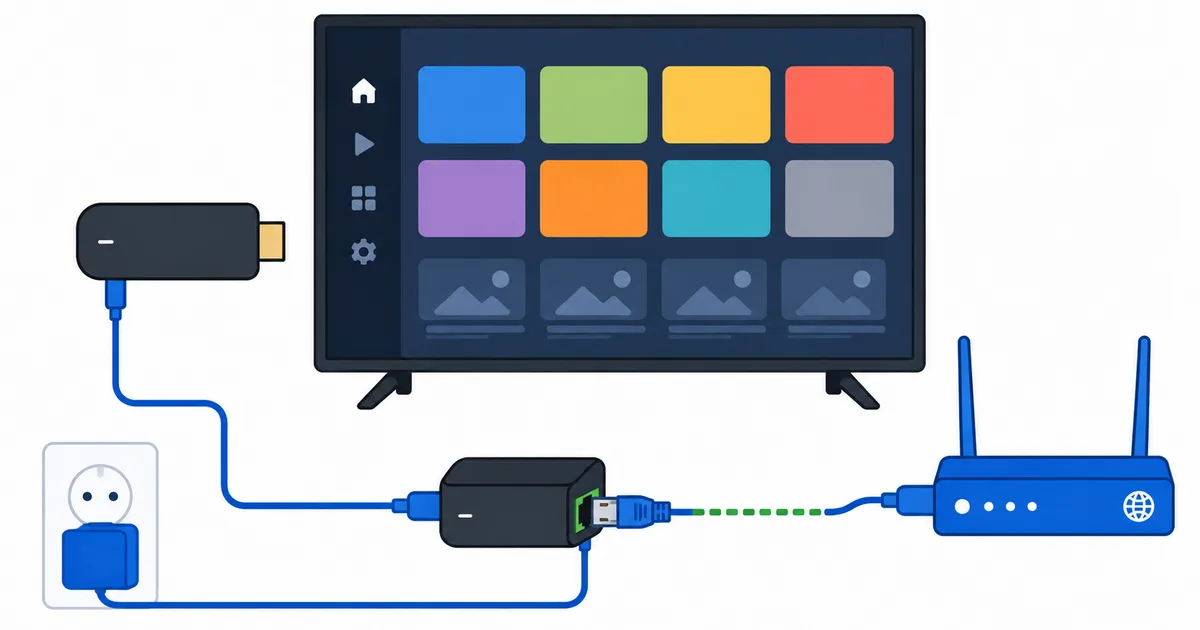
To use Ethernet on a Fire TV Stick, you need Amazon’s official Ethernet adapter — it replaces the power adapter and adds a wired port for steadier 4K streaming with no Wi-Fi dips. Plug the stick into the adapter, the adapter into power and your router, and the Fire TV switches to the wired connection automatically. This guide walks through the setup and a troubleshooting table. For the full case for wiring your TV, see our Wi-Fi vs Ethernet guide.
Before You Start
You will need:
- Your Fire TV Stick and its remote.
- The Amazon Ethernet Adapter for Fire TV (the official one — generic adapters can be unreliable).
- An Ethernet cable long enough to reach your router.
- A free router LAN port.
Wiring is most worthwhile for a main 4K TV or when the stick sits far from the router — the reasoning is in our Wi-Fi vs Ethernet guide.
Step-by-Step
- Get the official adapter. Buy the Amazon Ethernet Adapter for Fire TV, which combines power and an Ethernet port in one unit.
- Connect the stick to the adapter. Plug the Fire TV Stick’s power connector into the adapter.
- Connect power and Ethernet. Plug the adapter into power, then run an Ethernet cable from the adapter to a router LAN port.
- Plug into the TV. Insert the Fire TV Stick into your TV’s HDMI port and select that input.
- Confirm the wired connection. Go to Settings → Network and check that a wired connection is shown and active.
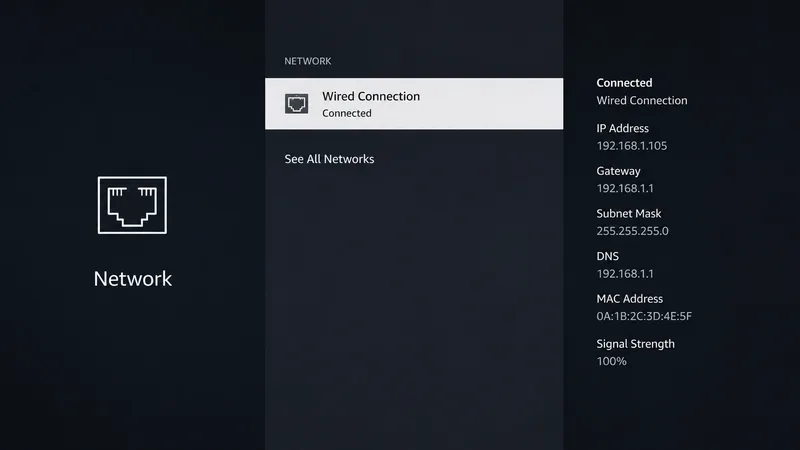
Tip: once wired, you can forget your Wi-Fi network in Settings so the Fire TV always uses Ethernet. A steady wired link often lets adaptive streaming hold a higher bitrate for longer.
Troubleshooting
| Problem | Likely cause | Fix |
|---|---|---|
| No wired connection shown | Stick not seated / adapter unpowered | Reseat the stick; confirm the adapter has power |
| Still using Wi-Fi | Wi-Fi taking priority | Forget the Wi-Fi network in Settings → Network |
| Intermittent drops | Faulty cable or router port | Try a known-good cable and a different LAN port |
| Slower than expected | Cheap/old cable | Use a Cat 5e or better Ethernet cable |
| Adapter not recognised | Generic (non-official) adapter | Use the official Amazon Ethernet adapter |
The Bottom Line
Wiring a Fire TV Stick is simple with the official Ethernet adapter: connect the stick, power and router, then confirm the wired link in Settings. It won’t raise your plan’s speed, but it delivers that speed steadily — ending the buffering that weak or congested Wi-Fi causes on a main 4K TV. If your stick is far from the router or you stream a lot of 4K HDR, it is one of the best small upgrades you can make.
Understand the trade-offs in Wi-Fi vs Ethernet for streaming, speed things up further with best Fire TV settings, and look up any term in the streaming glossary.