To free up storage on a Fire TV Stick, uninstall apps you do not use, clear the cache on the ones you keep, and clear app data where you can sign in again. A full Fire TV Stick causes slowdowns, install errors and crashes, and these steps fix it in a few minutes. This guide walks through the process and a troubleshooting table. If you keep running out, our Fire TV Stick 4K Max review covers the 16 GB model.
Before You Start
You will need only your Fire TV Stick and its remote. It helps to know:
- Cache vs data: clearing the cache is safe and keeps you signed in; clearing data resets the app and signs you out.
- Storage size: most sticks have 8 GB; the Fire TV Stick 4K Max and Cube have 16 GB.
- Freeing space also speeds up the device — see our guide to speeding up a slow Fire TV Stick.
Step-by-Step
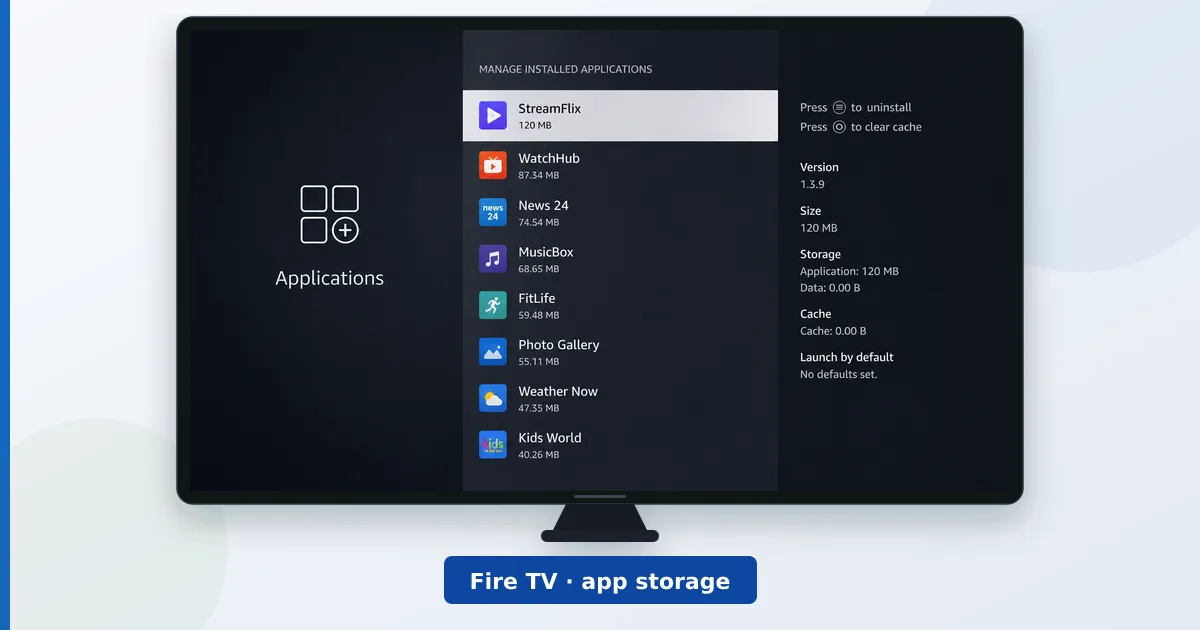
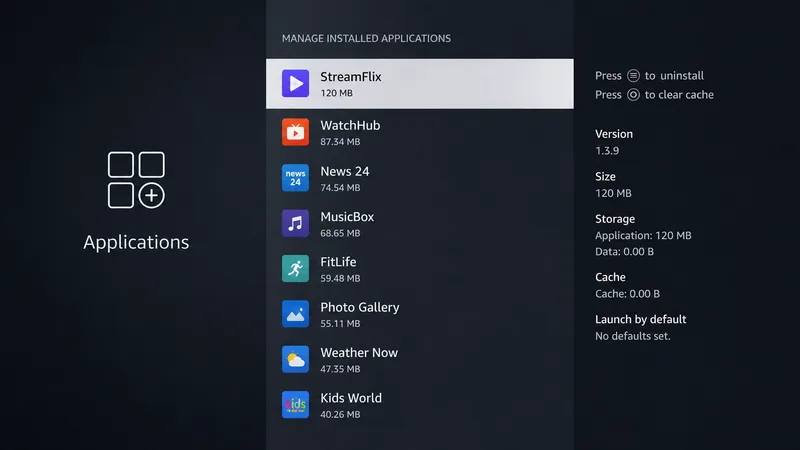
- Open app management. Go to Settings → Applications → Manage Installed Applications. Apps are listed with the storage each uses.
- Uninstall unused apps. Select apps you never open and choose Uninstall — this reclaims the most space.
- Clear app caches. Open each app you keep and choose Clear Cache. This is safe and removes temporary clutter.
- Clear app data where needed. For large apps you can sign into again, choose Clear Data to reset them fully.
- Remove downloads and restart. Delete any downloaded content, then restart the device to finalise the freed space.
Keep space free: aim to keep at least around 1 GB free. If you constantly run out on an 8 GB stick, a 16 GB model — or a box with USB storage like the NVIDIA Shield — is the lasting fix.
Troubleshooting
| Problem | Likely cause | Fix |
|---|---|---|
| “Insufficient storage” on install | Storage full | Uninstall apps; clear caches |
| App keeps crashing | Corrupt cache/data | Clear cache, then data if needed |
| Storage fills up again fast | 8 GB model + many apps | Keep fewer apps, or upgrade to 16 GB |
| Slow menus after cleanup | Needs restart | Restart the device |
| Can’t sign into a reinstalled app | Cleared data | Re-enter your account details |
The Bottom Line
Freeing storage on a Fire TV Stick is quick: uninstall what you do not use, clear caches on what you keep, and clear data for the heaviest apps you can sign back into. Keep around 1 GB free and the device stays fast and installs reliably. If an 8 GB stick fills up no matter what, the real fix is a 16 GB model or a box with expandable storage.
For more speed, see how to speed up a slow Fire TV Stick; to compare models, read Fire TV Stick 4K vs 4K Max; and look up any term in the streaming glossary.