If your Fire TV Stick is slow or laggy, the fastest fixes are to free up storage, clear app caches, close background apps and restart the device. Most slowdowns come from full storage, cache build-up or too many background processes — all easy to fix in a few minutes. This guide gives you ten proven steps, from quick wins to deeper fixes, plus when it is time to upgrade. For the fastest current stick, see our Fire TV Stick 4K Max review.
Quick Wins First
Start with the three fixes that solve most slowdowns:
- Restart the device. Settings → My Fire TV → Restart, or unplug for 30 seconds. Clears memory instantly.
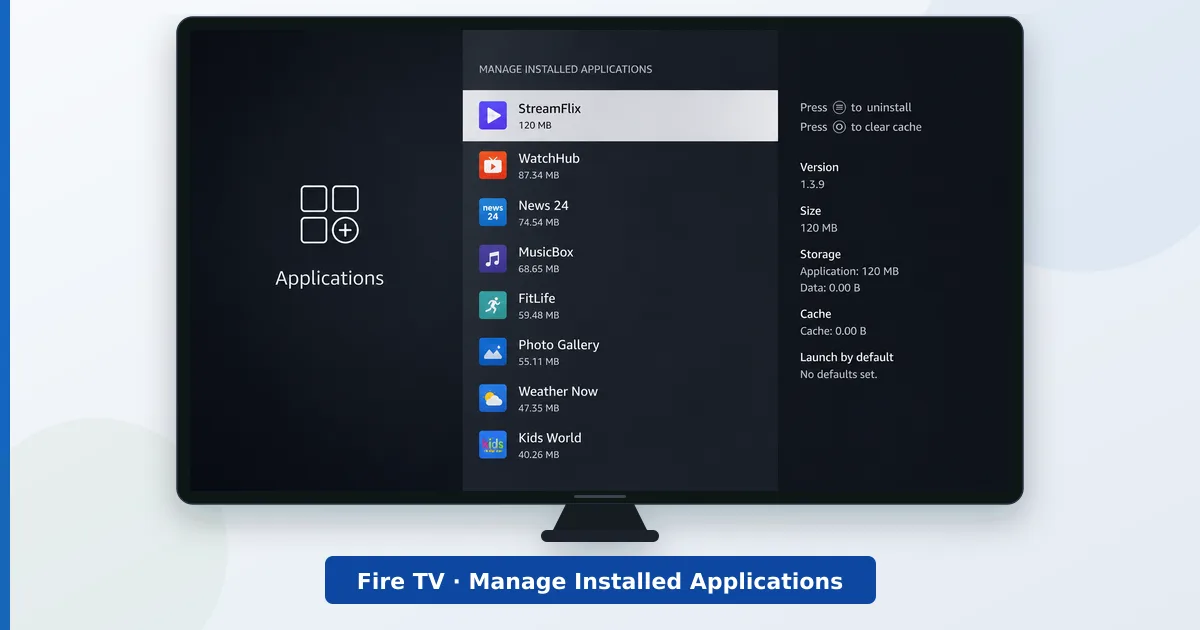
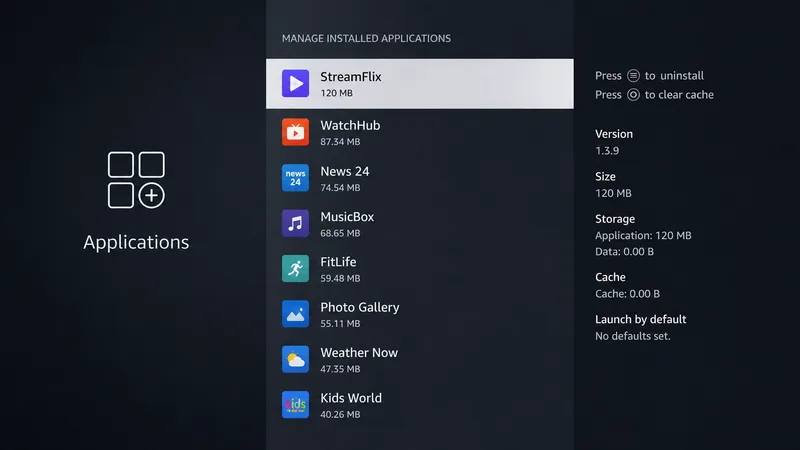
- Free up storage. Uninstall unused apps in Settings → Applications → Manage Installed Applications. A nearly full stick slows right down.
- Clear app caches. In the same menu, open each heavy app and choose Clear Cache — safe, and it removes temporary clutter.
Deeper Fixes
If it is still sluggish, work through these:
- Stop background apps. Force stop apps you are not using to free memory.
- Turn off data monitoring and notifications. Reduces constant background activity.
- Disable featured content auto-play. Turn off the home-screen video/audio preview to lighten the interface.
- Update the software. Install pending updates in Settings → My Fire TV → About → Check for Updates.
- Reduce the home-screen clutter. Remove apps you do not use from the favourites row.
- Improve the connection. Move closer to a 5 GHz router, or add an Ethernet adapter — buffering is often a network issue, not the device.
- Factory reset (last resort). If nothing works, reset in Settings → My Fire TV → Reset to Factory Defaults and set up fresh.
If It's Still Slow
| Symptom | Likely cause | Fix |
|---|---|---|
| Laggy menus | Full storage / caches | Uninstall apps, clear caches |
| Apps crash or freeze | Low memory | Force stop background apps; restart |
| Buffering during playback | Weak Wi-Fi | 5 GHz, closer router, or Ethernet adapter |
| Slow even after fixes | Ageing hardware | Upgrade to the 4K Max |
| Overheating and slowdown | Poor ventilation | Use the HDMI extender; improve airflow |
Keep it fast: restart weekly, keep some free storage, and clear caches now and then. If your stick is several years old and still slow after these steps, a newer model with more RAM and storage is the real fix.
The Bottom Line
A slow Fire TV Stick is usually a storage, cache or memory problem — not a dead device. Restart it, free up storage, clear caches and close background apps, and most of the speed returns in minutes. Tidy the home screen, keep the software updated, and improve the connection for buffering. If it is old and still sluggish after all ten fixes, upgrading to the faster Fire TV Stick 4K Max is the lasting answer.
See how the current models compare in Fire TV Stick 4K vs 4K Max, and look up any term in the streaming glossary.