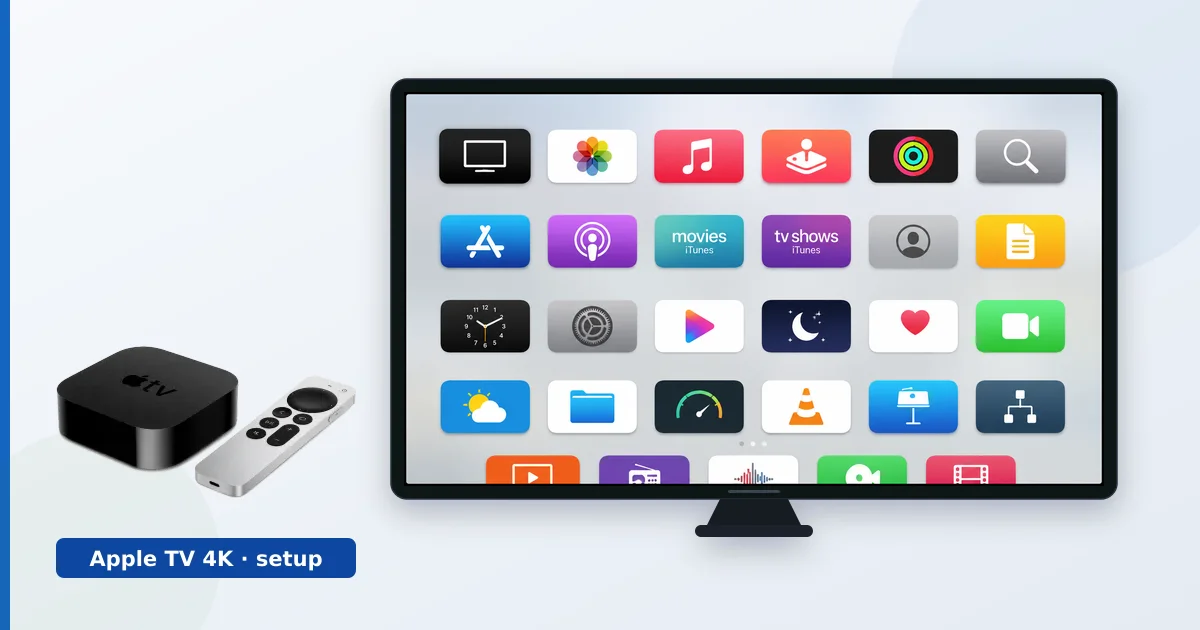
Setting up an Apple TV 4K takes about ten minutes: connect it to your TV and power, sign in with your Apple ID, install apps, then enable HDR and Dolby Atmos and tune the picture. This step-by-step guide walks through the whole process, plus a troubleshooting table for the common snags. For a full assessment of the device, see our Apple TV 4K review.
Before You Start
You will need:
- An Apple TV 4K, its Siri Remote and power cable.
- A High Speed HDMI cable (Premium High Speed for 4K HDR).
- Your Apple ID and Wi-Fi password (or an Ethernet cable).
- An iPhone nearby (optional, but speeds up setup and enables colour calibration).
Step-by-Step Setup
- Connect the hardware. Plug the Apple TV into an HDMI port and into power, then select that HDMI input on your TV.
- Choose language and network. Pick your language and region, then join Wi-Fi or plug in Ethernet.
- Sign in. Enter your Apple ID, or bring an iPhone close to transfer your account and network automatically.
- Install your apps. Download the streaming apps you use from the App Store and sign in to each.
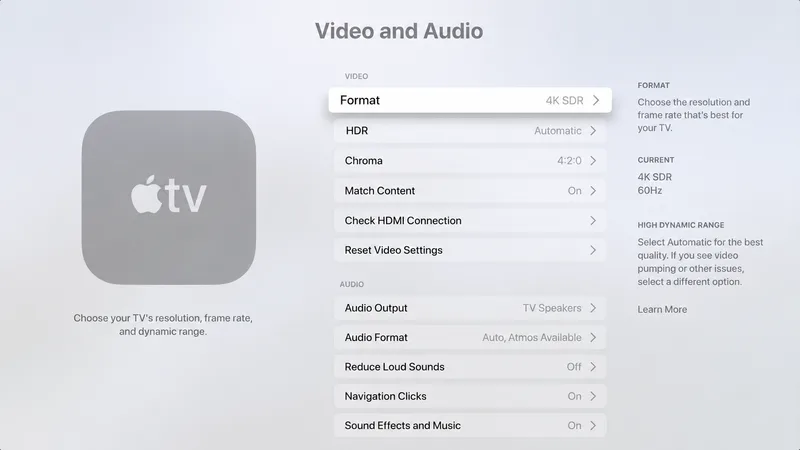
- Enable HDR and Atmos. In Settings → Video and Audio, confirm the format allows Dolby Vision and Dolby Atmos.
- Tune the picture. Use the iPhone colour-balance tool, and set the TV to a Cinema or Filmmaker mode for accurate HDR.
Tip: if you own the Wi-Fi + Ethernet model, wire the main TV for the steadiest 4K HDR streaming — see Wi-Fi vs Ethernet.
Troubleshooting Common Problems
| Problem | Likely cause | Fix |
|---|---|---|
| No 4K or HDR | Cable/input can’t carry it | Use a Premium High Speed cable; enable the input’s full-format mode |
| No Dolby Atmos | Format not enabled / gear can’t decode | Check Settings → Video and Audio; use eARC to a soundbar |
| Black screen on some content | HDCP handshake | Reseat the cable, power-cycle, ensure HDCP 2.2 in the chain |
| Buffering | Weak Wi-Fi | Wire it, or move closer to a 5 GHz router |
| Remote not responding | Needs charge/pairing | Charge the Siri Remote; re-pair in Settings |
The Bottom Line
An Apple TV 4K is quick to set up: connect, sign in with your Apple ID, install apps, and enable HDR and Atmos. Spend two extra minutes on picture tuning and, if you can, a wired connection — and you have one of the fastest, cleanest streaming experiences available. If anything looks wrong, the troubleshooting table above covers the usual causes.
Read our full Apple TV 4K review, see how it compares in Apple TV vs Google TV Streamer, and look up any term in the streaming glossary.