HDCP (High-bandwidth Digital Content Protection) is copy protection on the HDMI link between your devices, and when it fails you get a black screen or an error instead of your show. It requires every device in the chain — streaming stick, receiver, soundbar, cable and TV — to support the right HDCP version. This guide explains what HDCP is, why it blacks out your screen, and a step-by-step way to fix HDCP errors.
What HDCP Is
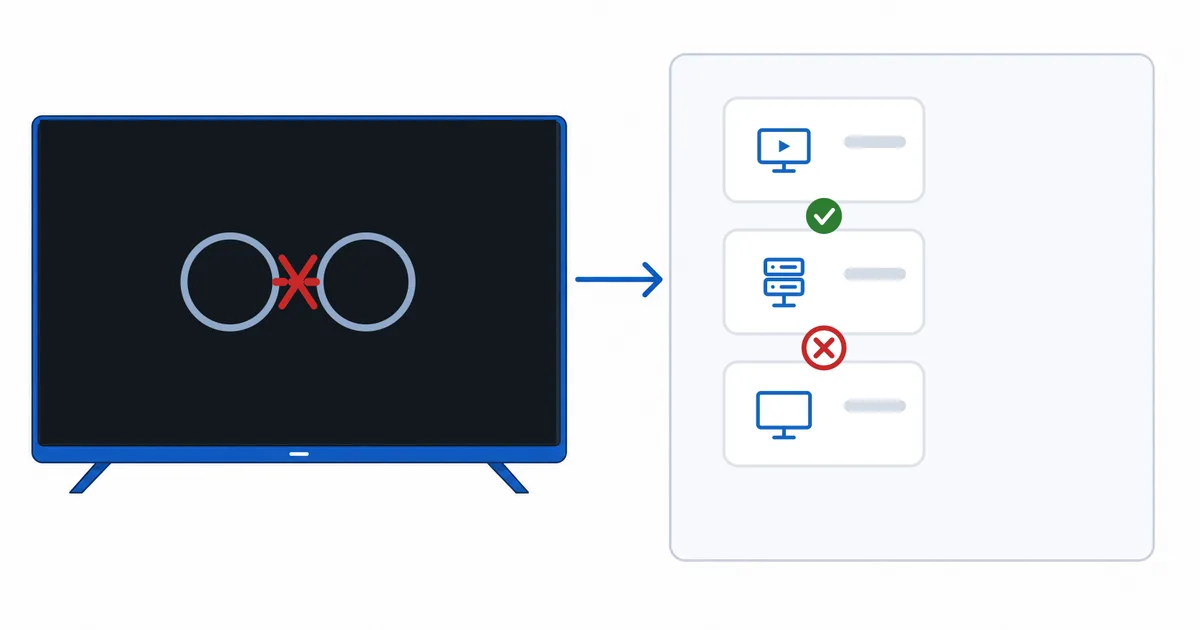
HDCP is a form of copy protection applied to the HDMI connection. When you play protected content — most streaming films and shows — the source device and display perform a handshake: they verify each other and agree to encrypt the video as it travels over the cable, so it can’t be easily copied.
Crucially, this handshake must succeed across every device in the chain: streaming device → any AV receiver or soundbar → TV, plus the cables and any switch. If one link fails or doesn’t support the required version, the protected content is blocked.
Why It Causes Black Screens
An HDCP failure typically shows up as a black screen, a flickering image, or an on-screen HDCP error — but only on protected content. A helpful clue: if the device’s own menus and non-protected video play fine, but a streaming app goes black, HDCP is the likely culprit.
Common triggers:
- A device in the chain that doesn’t support the required HDCP version.
- An HDMI splitter or switch that doesn’t pass HDCP correctly.
- A loose or faulty cable disrupting the handshake.
- A wrong or non-full-bandwidth HDMI input setting on the TV.
It is easy to mistake a cable or HDMI-version issue for HDCP, since the symptoms overlap.
HDCP Versions and 4K
The version that matters most today is HDCP 2.2, required for 4K protected content:
| Content | HDCP needed | If a link is older |
|---|---|---|
| HD (1080p) protected | HDCP 1.4+ | Usually plays |
| 4K protected | HDCP 2.2+ | Drops to HD or black screen |
| Non-protected video | None | Always plays |
For 4K streaming, every device on the path — the streaming device, any receiver, and the TV’s HDMI port you’re using — must support HDCP 2.2 or later. One older link can quietly cap you at HD or black out the screen.
How to Fix HDCP Errors
Work through these in order — most HDCP errors clear within a few steps:
- Power-cycle everything. Turn off the TV, streaming device and receiver, unplug for 30 seconds, then power on TV first, then devices — this forces a fresh handshake.
- Reseat the cable firmly at both ends, and try a different HDMI input on the TV.
- Remove splitters/switches temporarily; many don’t pass HDCP correctly.
- Swap the HDMI cable for a known-good Premium High Speed one.
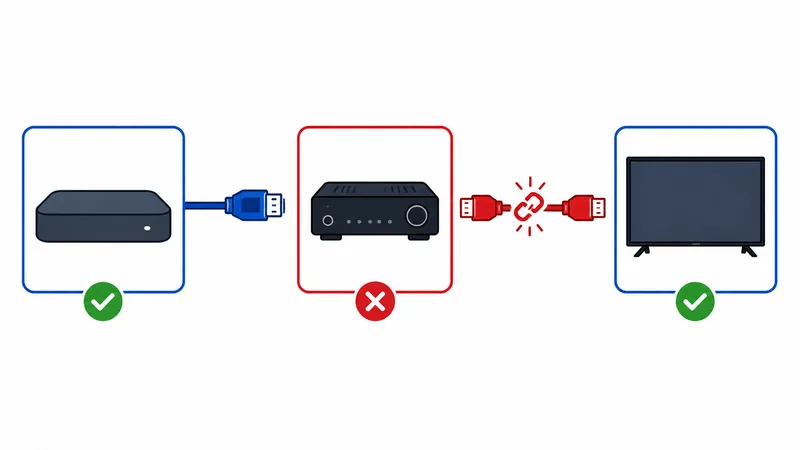
- Bypass the receiver — connect the streaming device straight to the TV to isolate the culprit.
- Check versions — confirm each device supports HDCP 2.2 for 4K; enable the TV’s enhanced/full-format setting for that input.
Fast test: plug the streaming device directly into the TV. If the black screen disappears, the problem is a receiver, soundbar, splitter or cable in the middle — not the TV or streaming device.
Avoiding HDCP Problems
To prevent HDCP headaches when building a setup:
- Buy HDCP 2.2-capable gear for any 4K chain — TV, receiver and device.
- Use good HDMI cables (Premium High Speed for 4K HDR), firmly seated.
- Avoid unknown splitters/switches; if you need one, confirm it passes HDCP 2.2.
- Use the TV’s full-bandwidth HDMI setting (often labelled Enhanced, UHD Colour or similar) on the input you use.
The Bottom Line
HDCP is the copy protection on your HDMI link, and a failed handshake anywhere in the chain shows up as a black screen or error on protected content. For 4K, every device — streaming device, receiver and TV — must support HDCP 2.2. When it goes wrong, power-cycle in order, reseat and swap the cable, remove splitters, and plug the device straight into the TV to find the weak link. Build the whole chain to HDCP 2.2 and these black screens disappear.
Next, make sure the rest of your connection is right in HDMI versions explained, or troubleshoot picture quality in HDR explained.
Not sure about a term on this page? Look it up in the streaming glossary.