QoS (Quality of Service) is a router feature that prioritises chosen traffic — like video streaming — so it keeps enough bandwidth when the network is busy. It does not add speed; it decides who gets served first when devices compete. That makes it most useful in busy households where a big download or a gaming session would otherwise starve your stream. This guide explains what QoS is, how to set it up, and when it genuinely helps.
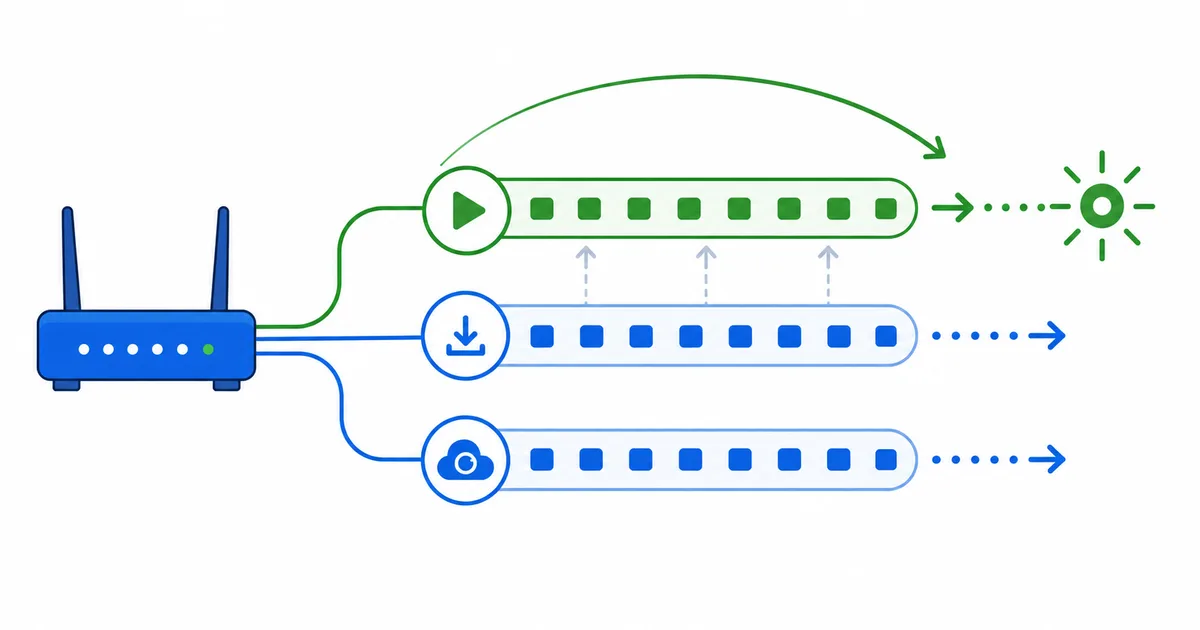
What QoS Is
Your connection has a fixed amount of bandwidth. When several devices want it at once — someone streaming 4K, someone downloading a game, a phone backing up photos — they compete, and your stream can lose out and buffer.
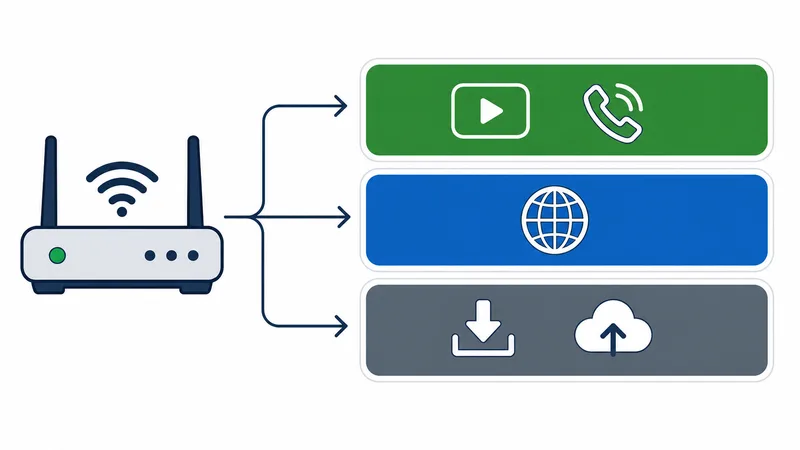
QoS manages that competition. It lets the router rank traffic so important, time-sensitive data (video, calls) is served before background data (downloads, updates). It is the network version of a priority queue: everyone still gets served, but the urgent traffic goes first.
How QoS Works
QoS acts at the router, where all your home traffic converges. In simple terms:
- It classifies traffic — by device, application, or category (video, gaming, downloads).
- It assigns priority — higher-priority traffic gets bandwidth first during congestion.
- It only acts under pressure — when there is spare bandwidth, everything flows freely; QoS matters at the moments demand exceeds supply.
This is why QoS is about fairness under load, not raw speed. It protects your stream’s steady bitrate when the household is busy, keeping adaptive streaming on a higher-quality rung.
How to Set Up QoS
The exact menus vary by router, but the steps are similar:
- Open the router admin page (usually an address like 192.168.1.1) and sign in.
- Find QoS — often under Advanced, Traffic, or Bandwidth Control.
- Enable it and, if asked, enter your correct download and upload speeds so the router can manage the queue accurately.
- Prioritise your streaming — pick your TV or streaming box by name/IP, or choose a “video/streaming” category.
- Save and reboot, then test a stream while a download runs to confirm it stays smooth.
Watch the speed setting: if QoS asks for your line speed and you enter a figure far below your real speed, it can cap your whole connection. Use your actual plan speed, and test streaming before and after — see the internet speed guide.
QoS pairs well with the other tweaks in our router settings for streaming guide, such as band, channel and placement.
When QoS Helps (and When It Doesn't)
QoS is powerful for one specific problem and useless for others. Knowing the difference saves time:
| Problem | Does QoS help? | Better fix |
|---|---|---|
| Stream buffers when someone downloads | ✅ Yes | Prioritise video with QoS |
| Many devices compete at peak times | ✅ Yes | QoS + enough bandwidth |
| Whole plan is too slow | ❌ No | Upgrade the plan |
| Weak or distant Wi-Fi | ❌ No | 5 GHz, placement, or Ethernet |
| Only one service is slow | ❌ No | Likely its CDN route |
| Video-only slowdown at peak | ❌ Usually no | Check ISP throttling |
The rule of thumb: QoS solves contention inside your home, not a shortage of bandwidth or a problem outside it.
The Bottom Line
QoS is a priority system for your home network: it keeps video and calls ahead of downloads and backups so your stream survives a busy connection. Enable it in your router, set your real line speed, and prioritise your streaming device — and buffering caused by competing devices largely disappears. Just remember it shares bandwidth smarter; it cannot create more, so a slow plan, weak Wi-Fi or a distant server still need their own fixes.
Next, apply the rest of the network tweaks in our router settings guide, and decide between wired and wireless in Wi-Fi vs Ethernet.
Not sure about a term on this page? Look it up in the streaming glossary.