The fastest way to stop Wi-Fi buffering is to tune four router settings: use the 5 GHz band for your TV, pick a clear channel, enable QoS to prioritise video, and place the router high and central. These target the real cause of most buffering — an unstable wireless signal — rather than raw speed. This guide walks through each setting step by step, plus when a mesh system or a wired link is the better fix.
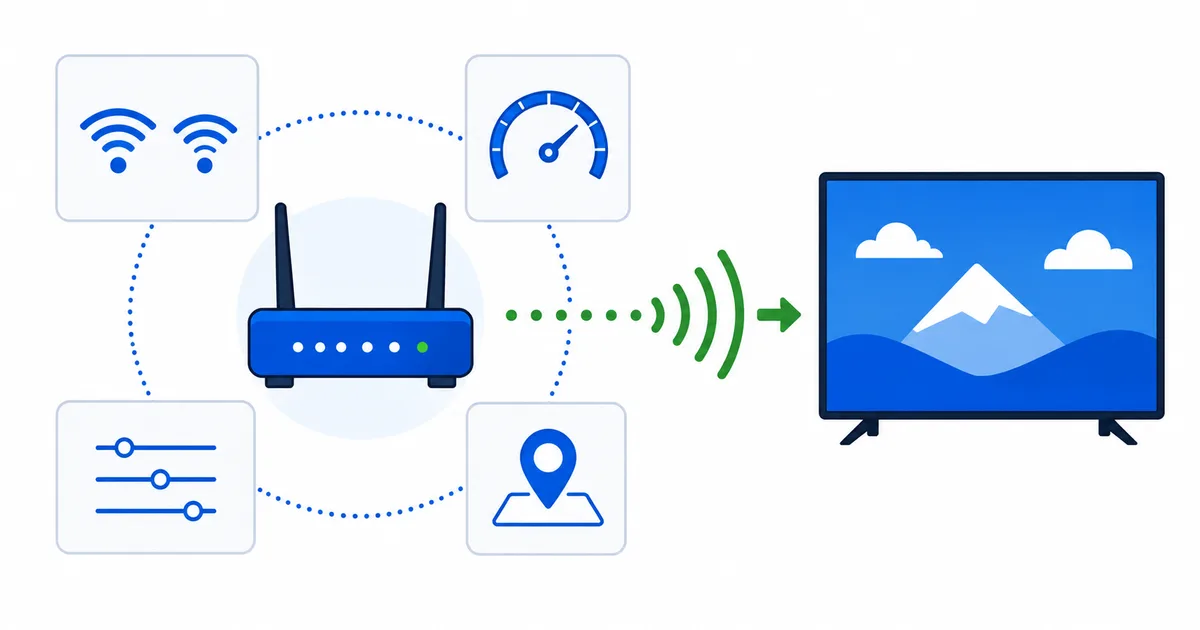
1. Choose the Right Band
Modern routers broadcast on 2.4 GHz and 5 GHz (and 6 GHz on Wi-Fi 6E). They trade range for speed:
- 5 GHz / 6 GHz — much faster, far less congested. Best for a TV within a room or two of the router.
- 2.4 GHz — slower but reaches further and through more walls. Use only for distant devices.
For streaming, connect your TV or box to 5 GHz. If your router uses one merged network name for both bands, consider splitting them so the TV reliably picks 5 GHz — the trade-offs are covered in our Wi-Fi vs Ethernet guide.
2. Pick a Clear Channel
In flats and dense neighbourhoods, many networks crowd the same channels, causing interference and the brief dips that trigger buffering.
- 2.4 GHz: use channels 1, 6 or 11 — the only non-overlapping options.
- 5 GHz: has many more channels, so congestion is rarer; auto-select usually works well.
- Let the router auto-scan if it offers it, or use a Wi-Fi analyser app to find the quietest channel.
3. Enable QoS
QoS (Quality of Service) lets the router prioritise traffic. With it on, video and calls get bandwidth before background tasks like cloud backups or big downloads.
- Turn on QoS if your router has it, and prioritise your streaming device or “video/streaming” traffic.
- This matters most in busy households where devices compete during peak evening hours.
Tip: QoS smooths contention inside your home. It cannot create bandwidth you do not have, so pair it with a plan that meets your household's needs — see the internet speed guide.
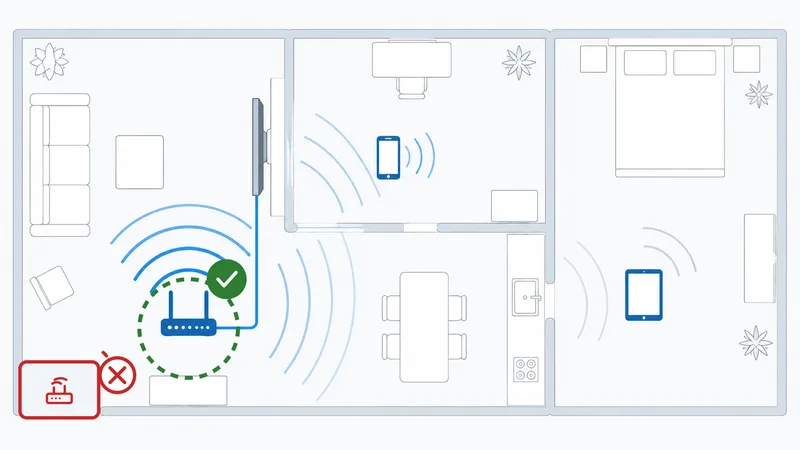
4. Place the Router Well
Placement is free and often the single biggest fix:
- Put the router high, central and in the open.
- Keep it away from metal, thick walls, microwaves and cordless phones.
- Avoid cupboards, floors and corners.
The clearer the line of sight to your main devices, the steadier the signal — and steadiness is what stops buffering.
Firmware, DNS and More
A few extra tweaks round things out:
- Update firmware — fixes bugs and improves performance and security.
- Set a fast DNS — can speed up how quickly apps and streams start; see our DNS for streaming guide.
- Enable WPA3 (or WPA2) security so neighbours are not sharing your bandwidth.
- Reboot occasionally to clear congestion and memory leaks.
- Consider a mesh if a large home has weak spots — mesh fixes coverage, not plan speed.
Quick Settings Table
| Setting | Recommended | Why |
|---|---|---|
| Band (nearby TV) | 5 GHz / 6 GHz | Faster, less congested |
| 2.4 GHz channel | 1, 6 or 11 | Non-overlapping |
| QoS | On, prioritise video | Smooths busy networks |
| Placement | High, central, open | Steadier signal |
| Firmware | Keep updated | Performance & security |
| Security | WPA2/WPA3 | Stops bandwidth leeching |
The Bottom Line
Most streaming buffering is a Wi-Fi problem, and four settings fix the bulk of it: use 5 GHz for the TV, choose a clear channel, enable QoS, and place the router high and central. Add firmware updates, a fast DNS and WPA3, and you have squeezed the most from your connection. If weak coverage persists in a big home, add a mesh; if a device must never stutter, wire it with Ethernet.
Next, decide between wireless and wired in our Wi-Fi vs Ethernet guide, and speed up start times with the DNS for streaming guide.
Not sure about a term on this page? Look it up in the streaming glossary.