ISP throttling is when your internet provider deliberately slows specific traffic — often video streaming — so your streams buffer or drop quality even though your plan speed looks fine. The clearest way to detect it is a simple test: compare streaming with and without a VPN. If video is smooth through a VPN but buffers without one, throttling is the likely cause. This guide shows how to test for it, confirm it, and reduce it.
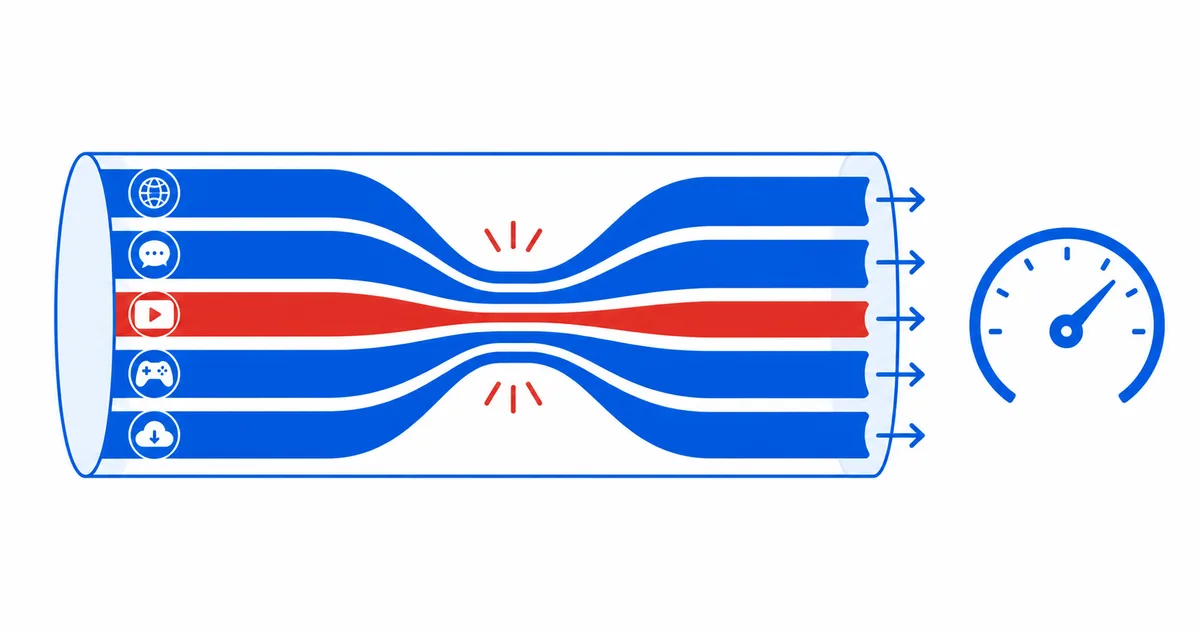
What Throttling Is
Throttling is deliberate traffic shaping: your ISP limits particular traffic rather than your whole connection. It differs from ordinary congestion:
- Throttling — your ISP chooses to slow specific traffic (a service, or video in general), often at peak times.
- Congestion — the network is simply overloaded, slowing everything for a while.
The result can look the same — evening buffering — but the fix differs. Throttling that targets video can be sidestepped; general congestion needs more capacity.
Signs You're Being Throttled
Throttling is likely if you notice:
- One service buffers while others are fine, or all video is capped at a low resolution.
- Streaming is fine at 2pm but buffers at 9pm, night after night.
- Speed tests look normal, yet video specifically struggles.
- Quality improves through a VPN, which hides the traffic type.
If your whole connection is slow all the time, that is more likely a plan, router or Wi-Fi issue than throttling.
How to Test for Throttling
A structured test takes a few minutes:
- Baseline. Run a speed test and note the result. Play a known 4K title and record the quality and any buffering.
- Time check. Repeat at a quiet hour and a busy evening hour. A large evening-only drop suggests congestion or shaping.
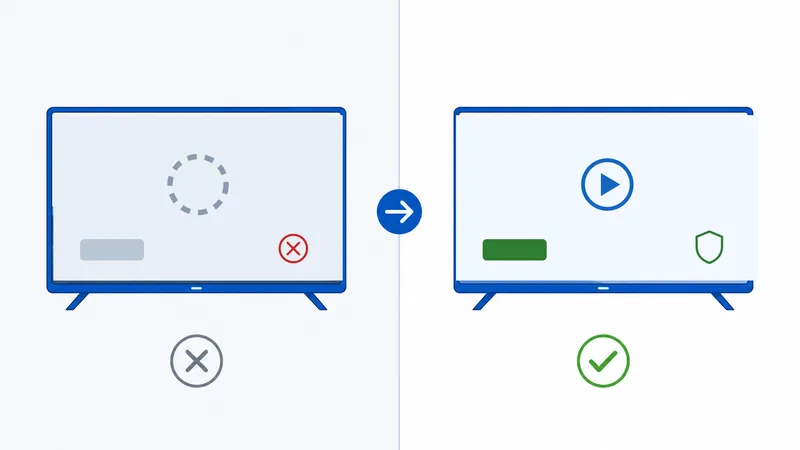
- VPN test. Turn on a VPN with a nearby server and repeat the same stream. If it now plays smoothly at higher quality, your ISP was likely singling out that traffic.
- Compare services. If only one platform suffers, the issue may be that service’s route or CDN, not blanket throttling.
Why the VPN test works: a VPN encrypts your traffic, so your ISP can't see which service or content type you're using — and therefore can't throttle it selectively. If encryption fixes it, selective throttling was the cause.
How to Reduce Throttling
If your test points to selective throttling:
| Approach | When it helps | Note |
|---|---|---|
| Use a VPN | Traffic-specific throttling | Choose a fast, nearby server to limit overhead |
| Contact your ISP | Unclear or account-specific limits | Ask about traffic management on your plan |
| Change plan/provider | Persistent shaping | Look for providers without video shaping |
| Shift viewing off-peak | Peak-time shaping | Not a real fix, but confirms the pattern |
A reputable VPN is usually the most direct fix for throttling that targets video — see our best VPN for streaming guide and the VPN on Fire TV setup. Remember a VPN adds a little overhead, so a slow server can hurt more than it helps.
Rule Out Other Causes First
Before blaming your ISP, eliminate the common culprits — most “throttling” turns out to be something local:
- Weak Wi-Fi — test on Ethernet or move closer to the router.
- Router settings — apply the fixes in our router settings guide.
- An overloaded device or an old streaming stick struggling with 4K.
- A single service’s CDN rather than your whole connection — see what a CDN is.
The Bottom Line
ISP throttling slows targeted traffic — usually video — so streaming buffers while your plan speed looks normal. Detect it by comparing quiet and busy hours and, most tellingly, streaming with and without a VPN. If encryption smooths it out, a reputable VPN is the most direct fix. But rule out weak Wi-Fi, router settings and a single service’s CDN first — most buffering is local, not your ISP throttling you.
Next, harden your setup with our router settings and Wi-Fi vs Ethernet guides, or pick a VPN in the best VPN for streaming guide.
Not sure about a term on this page? Look it up in the streaming glossary.