The fastest fix for poor streaming quality is to raise the app’s quality setting and improve your connection — wire up or move closer to the router — so the service can deliver a higher resolution. Most quality drops are bandwidth or settings, not the screen. This guide lists causes in order of likelihood, gives graduated diagnosis steps, and includes a diagnosis table and per-device fixes. It builds on our internet speed and resolution guides.
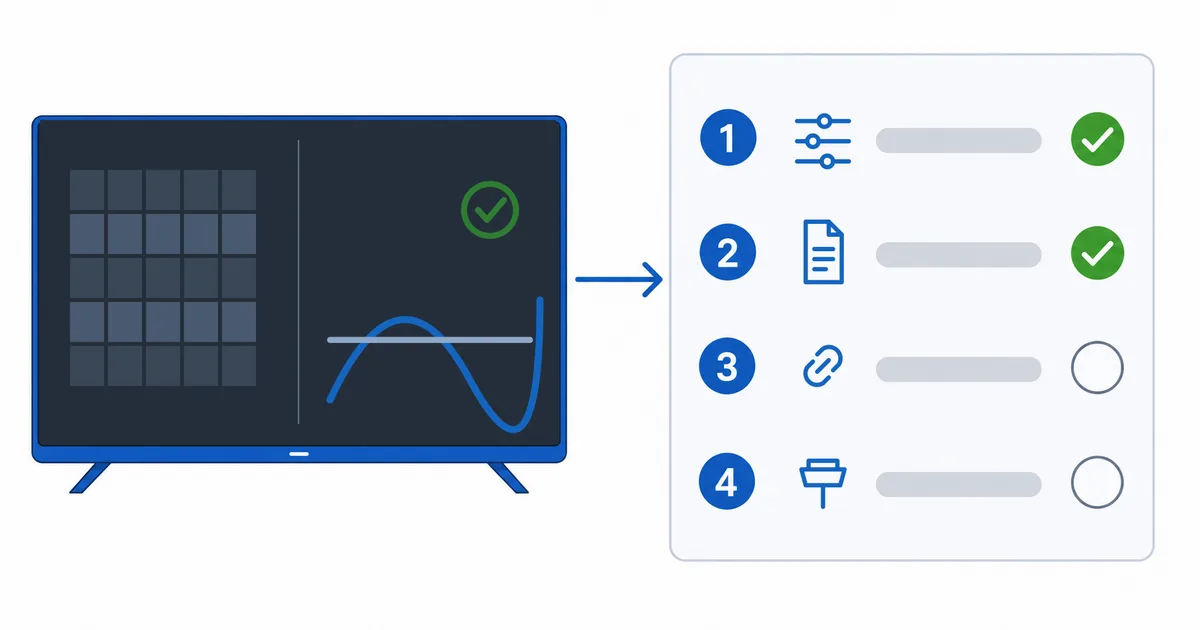
Causes, Most to Least Common
- Not enough bandwidth — the connection can’t sustain the resolution, so it downgrades.
- Quality setting capped — the app or account is set to a lower quality to save data.
- Account tier without HD/4K — the plan simply doesn’t include higher resolutions.
- Device or HDMI limit — a non-4K device, old cable or wrong port.
- Source or bitrate limit — the content itself isn’t available higher.
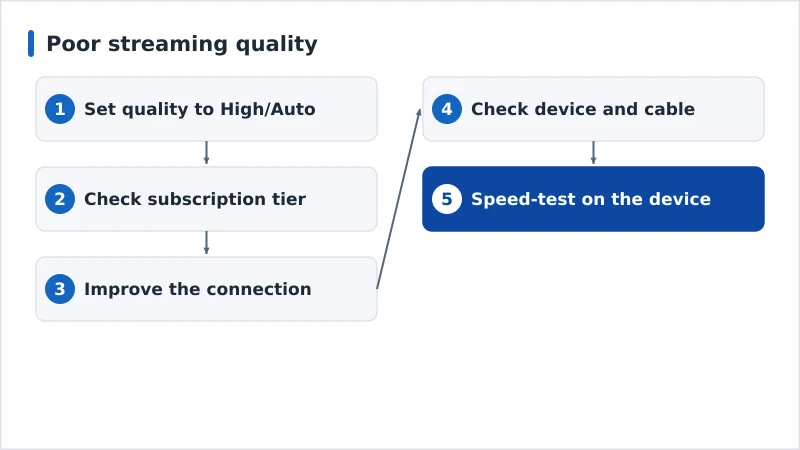
Diagnosis: Easiest First
- Set the app quality to High/Auto-best — many apps default to a data-saving mode.
- Check your subscription tier — confirm it includes HD or 4K.
- Improve the connection — wire up or move closer to the router.
- Check the device and cable — a 4K device and a high-speed HDMI cable on a supported port.
- Speed-test on the device — confirm you clear the threshold for the quality you want.
Diagnosis Table
| Symptom | Likely cause | Fix |
|---|---|---|
| Soft/blocky at all times | Not enough bandwidth | Wire up; lower other usage; upgrade plan |
| Stuck at low quality | App set to data-saver | Set quality to High/Auto-best |
| No 4K option at all | Tier without 4K | Upgrade the subscription tier |
| Device won’t reach 4K/HDR | Device/cable/port limit | Use a 4K device + high-speed HDMI |
| Starts low, never improves | Connection is the ceiling | Improve Wi-Fi or wire up |
By Device
- Fire TV / Android TV: set Display to the correct 4K/HDR output and the app to highest quality; wire up if possible.
- Apple TV: check Settings → Video matches your TV (4K, HDR/Dolby Vision); avoid forcing an unsupported format.
- Smart TV: enable the correct HDMI/HDR mode for the input; built-in apps sometimes cap quality — a dedicated device can do better.
The Bottom Line
Poor quality is usually fixable in minutes: raise the app’s quality setting, confirm your plan includes the resolution you want, improve the connection, and check your device and HDMI cable support 4K/HDR. Work down the steps from easiest to hardest. Understand the numbers in our internet speed guide and bitrate guide, check your HDMI version, fix related issues in our buffering guide, and start from our streaming troubleshooting checklist, and look up any term in the streaming glossary.