The fastest fix for subtitles not showing is to open the player’s subtitle menu and select the track — they’re usually just turned off or on the wrong language. If no track exists, add a matching external file; if they’re garbled, set encoding to UTF-8. This guide covers why subtitles fail to appear and how to fix it; for adding, downloading and syncing subtitles, see our subtitles setup guide. Below are the causes, a diagnosis table, and per-device steps.
Causes, Most to Least Common
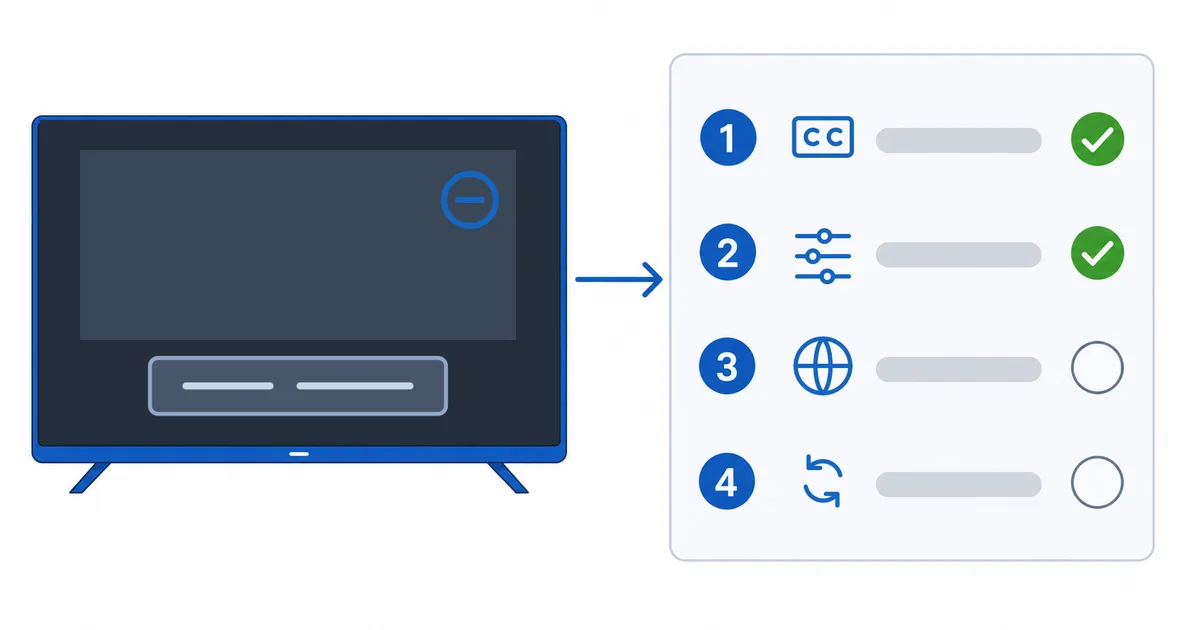
- Track not selected / off — subtitles simply aren’t turned on.
- Language not available — the title lacks your language.
- External file not matched — the SRT filename doesn’t match the video.
- Encoding issue — text blank or garbled (needs UTF-8).
- App caption bug — fixed by updating or reinstalling.
Diagnosis: Easiest First
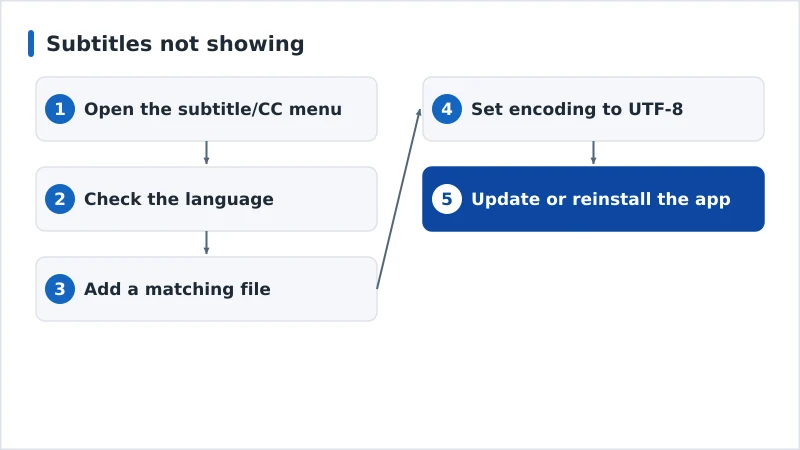
- Open the subtitle/CC menu and select the track — the number-one fix.
- Check the language is available; try another source if not.
- Add a matching file — for local media, an SRT with the same filename as the video, or load it manually. See subtitles setup guide.
- Set encoding to UTF-8 if text is blank or shows symbols.
- Update or reinstall the app to clear caption bugs.
Diagnosis Table
| Symptom | Likely cause | Fix |
|---|---|---|
| No subtitles at all | Track off / not selected | Turn on in the subtitle menu |
| Your language missing | Title lacks it | Use another source or an external file |
| External SRT ignored | Filename mismatch | Rename SRT to match; or add manually |
| Blank or garbled text | Encoding | Set encoding to UTF-8 |
| Missing in one app only | App caption bug | Update or reinstall the app |
By Device
- Fire TV / Android TV: use the app’s CC/subtitle control; check system Accessibility → Captions.
- Apple TV: open the subtitle menu by swiping down during playback; check Settings → Accessibility → Subtitles.
- Plex / Kodi / VLC: select or add a subtitle track in the player; set encoding to UTF-8 — full steps in our subtitles setup guide.
- Smart TV: enable captions in the app and the TV’s accessibility settings.
The Bottom Line
Subtitles that won’t show are almost always just turned off or on the wrong language — open the subtitle menu and select the track first. If the title lacks your language, add a matching external SRT; if text is garbled, switch to UTF-8; if it’s one app, update it. For adding, downloading and syncing subtitles in detail, see our subtitles setup guide; fix timing in our audio/video sync guide; learn the tech in our video codecs guide; and start from our streaming troubleshooting checklist, and look up any term in the streaming glossary.