The fastest fix for audio out of sync is to restart the app or device, then adjust your TV’s or soundbar’s audio-delay (lip-sync) setting until speech matches the picture. Most sync problems come from audio processing delay in external speakers or an app hiccup, not the video. This guide lists causes by likelihood, gives graduated diagnosis steps, and includes a diagnosis table and per-device fixes. It relates to our audio formats and HDMI guides.
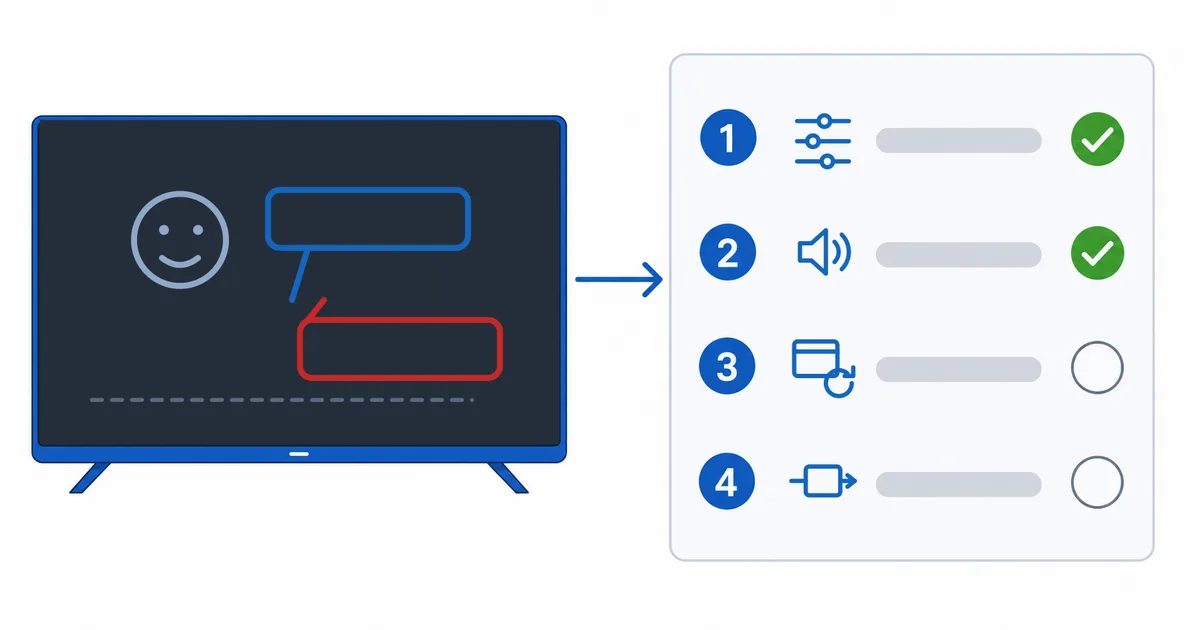
Causes, Most to Least Common
- External speaker delay — a soundbar or AV receiver processes audio slightly later than the picture.
- TV audio settings — a lip-sync/audio-delay value set wrong, or an audio-processing mode.
- App or stream glitch — a temporary hiccup, cleared by a restart.
- Audio format/passthrough — a decoding delay with Dolby/surround passthrough.
- Underpowered device — struggling to keep audio and video aligned over time.
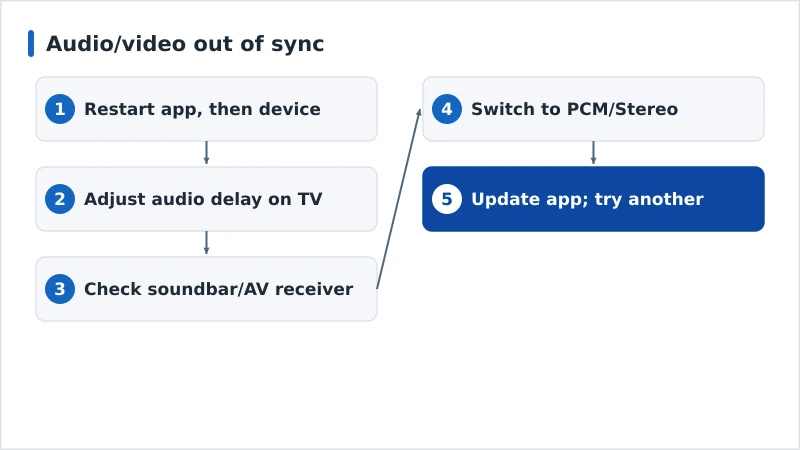
Diagnosis: Easiest First
- Restart the app, then the device — clears most temporary glitches.
- Adjust the audio-delay (lip-sync) setting on the TV in small steps.
- Check the soundbar/AV receiver sync setting if you use external speakers.
- Switch the audio format — try PCM/Stereo instead of Dolby/passthrough (or vice versa).
- Update the app; try another app or title to see if it’s source-specific.
Diagnosis Table
| Symptom | Likely cause | Fix |
|---|---|---|
| Fixed offset with a soundbar | External speaker delay | Adjust soundbar/AVR audio-delay |
| Off on the TV speakers too | TV audio setting | Toggle TV lip-sync/audio-delay |
| Fine, then drifts over time | App/stream or slow device | Restart; try another quality/app |
| Only with surround sound | Passthrough decode delay | Switch audio to PCM/Stereo |
| Off in one app only | App bug | Update or reinstall the app |
By Device
- Fire TV: in Settings → Display & Sounds → Audio, try switching to PCM or toggling Dolby; restart the app.
- Apple TV: use the built-in wireless audio sync tool (with an iPhone) and check Settings → Video and Audio.
- Android TV: adjust audio output format and any A/V sync option in settings.
- Smart TV + soundbar: the TV’s and soundbar’s lip-sync settings are the usual fix for external audio.
The Bottom Line
Audio-video sync problems are almost always audio processing delay or a temporary glitch: restart first, then nudge the TV’s or soundbar’s audio-delay setting until speech matches, and try switching the audio format. A fixed offset is a settings fix; progressive drift usually means restarting the app or device. Understand the tech in our audio formats guide and HDMI guide, fix related issues in our buffering and poor quality guides, and start from our streaming troubleshooting checklist, and look up any term in the streaming glossary.