The fastest fix for Jellyfin transcoding issues is to enable hardware acceleration in the Dashboard (Quick Sync or NVENC) and store device-friendly formats and text subtitles, so playback stays on direct play or transcodes on the GPU. Jellyfin includes hardware transcoding for free — the trick is configuring it. This guide covers acceleration, codecs, burned-in subtitles and errors, with a diagnosis table. It builds on our transcoding explainer and Jellyfin setup guide.
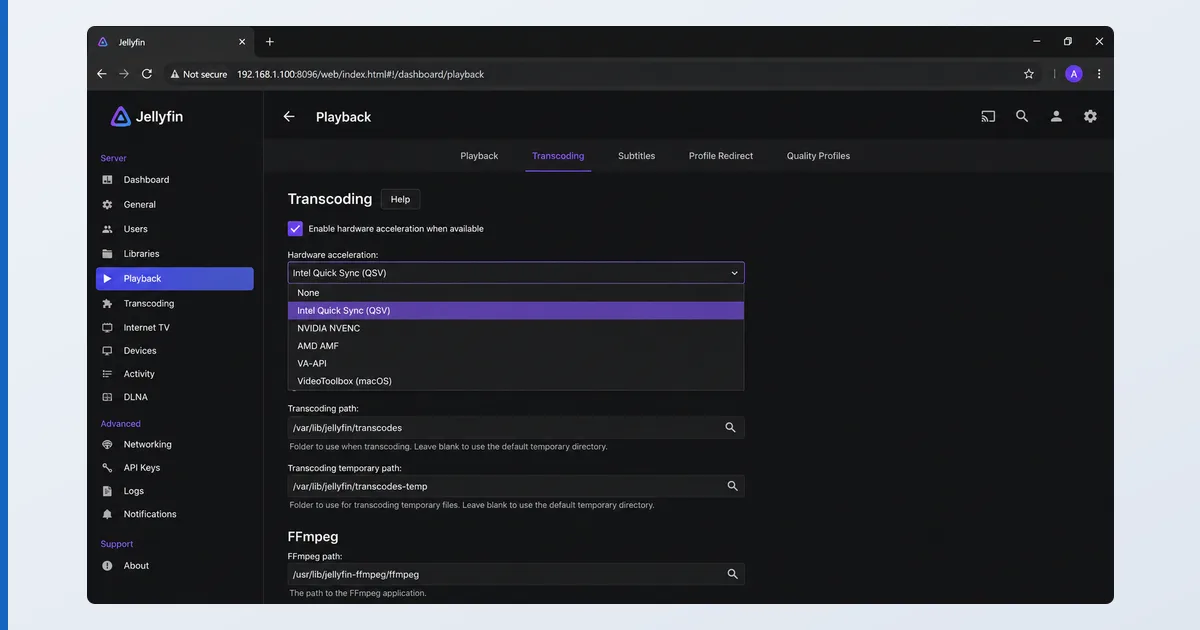
Causes, Most to Least Common
- Hardware acceleration not set up — Jellyfin falls back to heavy software transcoding.
- Incompatible codec/container — the client can’t direct-play the file.
- Burned-in subtitles — image-based PGS/VobSub force a transcode.
- GPU driver/passthrough missing — common on Docker or NAS setups.
- Underpowered server — software transcoding on a weak CPU.
Fixes: Easiest First
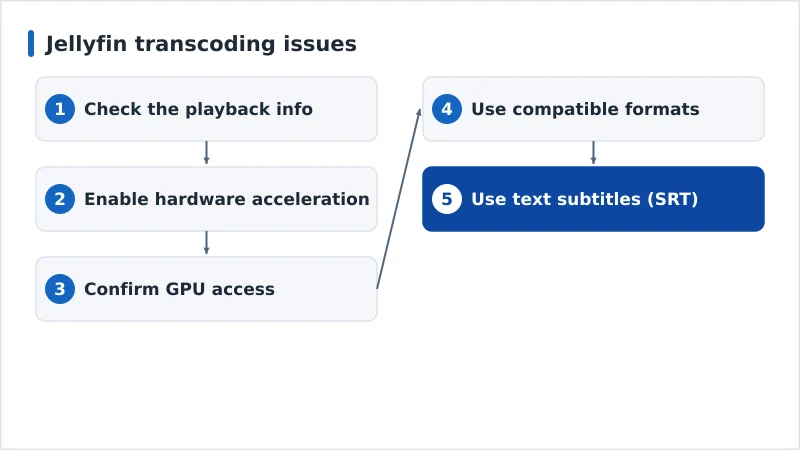
- Check the playback info — see if it’s Direct Play or Transcode, and what’s converting (video, audio or subs).
- Enable hardware acceleration — Dashboard → Playback → Transcoding → Quick Sync/NVENC/VAAPI + supported codecs.
- Confirm GPU access — drivers installed, and passthrough configured in Docker/NAS.
- Use compatible formats — HEVC/H.264 video, AAC/AC3 audio, MP4/MKV containers.
- Use text subtitles — prefer SRT over image subs to avoid burn-in transcoding.
Diagnosis Table
| Symptom | Likely cause | Fix |
|---|---|---|
| Always software transcoding | Hardware accel off | Enable Quick Sync/NVENC in Dashboard |
| Transcode fails / playback error | GPU driver/passthrough | Install drivers; configure passthrough |
| Transcodes only with subtitles | Burned-in image subs | Use text SRT subtitles |
| Transcodes on one client | Client codec support | Use a client that supports the codec |
| 4K stutters when transcoding | Weak server | Use hardware accel or a stronger server |
By Setup
- Windows/Linux install: enable the matching hardware acceleration and install GPU drivers.
- Docker: pass the GPU into the container (device mapping) and install drivers on the host.
- NAS (Synology/QNAP): confirm the model supports hardware transcoding and enable it in Jellyfin.
- Client side: use apps that support your codecs natively so files direct-play — see the Jellyfin review.
The Bottom Line
Jellyfin transcoding issues almost always come down to hardware acceleration and formats: enable Quick Sync or NVENC in the Dashboard, confirm your GPU drivers and passthrough, store device-friendly codecs, and use text subtitles to avoid burn-in transcodes. Jellyfin’s free hardware transcoding does the rest. Understand the tech in our transcoding explainer and video codecs guide, set it up with our Jellyfin setup guide, read the full Jellyfin review, and start from our streaming troubleshooting checklist, and look up any term in the streaming glossary.