The fastest fix for Plex buffering is to keep playback on direct play — store device-friendly files and match the client’s quality setting — and wire the server to Ethernet, so it isn’t transcoding over a strained CPU or network. This is the server-side companion to our general buffering guide; it focuses on Plex’s transcoding, hardware, local network and remote access. Below are the causes, a diagnosis table, and per-scenario fixes. For the app itself, see our Plex review and Plex setup guide.
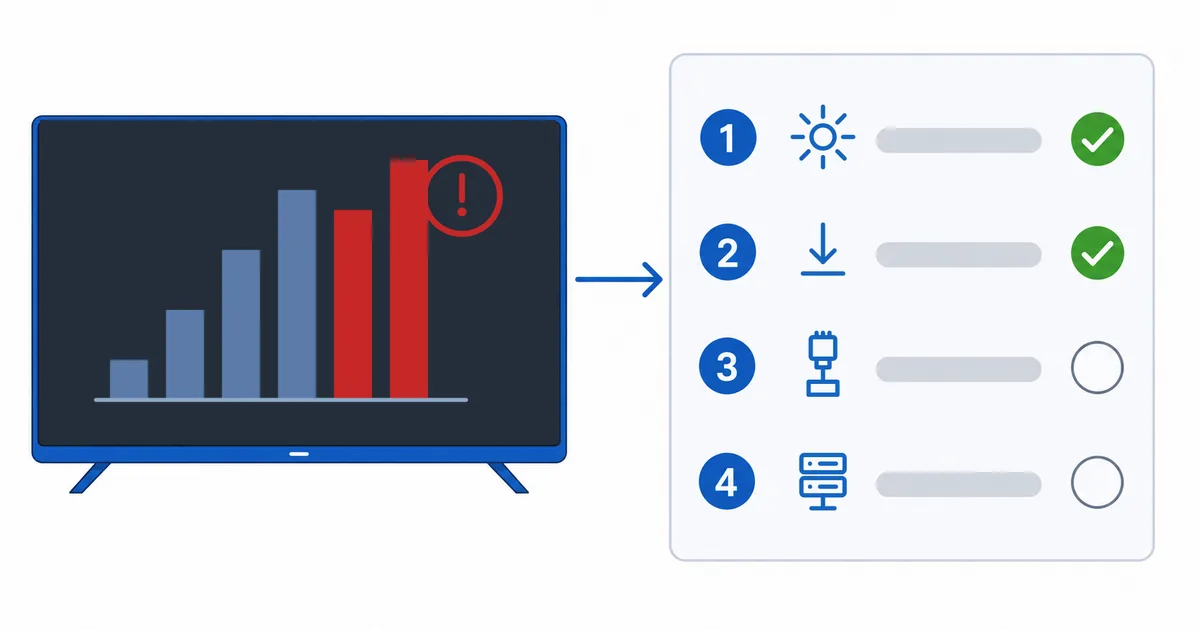
Server-Side Causes
This guide targets Plex-specific buffering. For Wi-Fi and bandwidth at the client, see our general buffering guide. On the server side:
- Transcoding load — the server converting a file the client can’t direct-play, maxing the CPU.
- Weak server hardware — no Intel Quick Sync for hardware transcoding, especially 4K.
- Local network bottleneck — server on Wi-Fi, or a slow link between server and client.
- Remote upload limit — streaming away from home over a slow home uplink.
- Quality settings — a capped or mismatched Remote Quality forcing transcodes.
Fixes: Easiest First
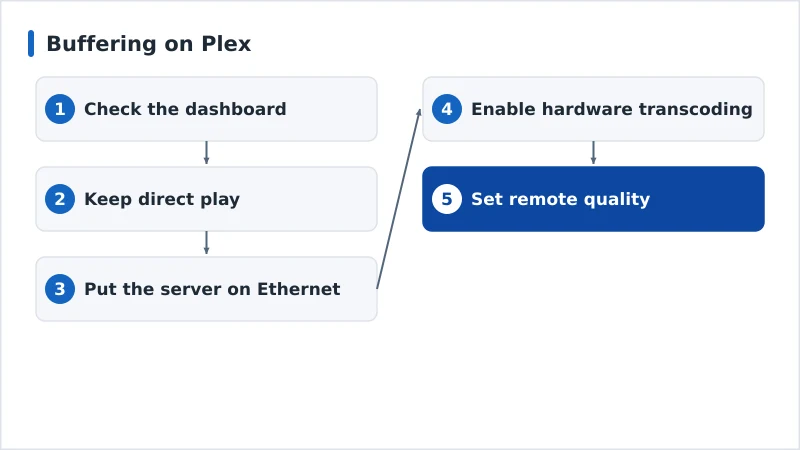
- Check the dashboard. See whether playback is Direct Play or Transcode — this tells you the cause.
- Keep direct play. Store device-friendly formats (H.264/HEVC MP4/MKV); set the client to original quality where the network allows.
- Wire the server. Put the server on Ethernet for a steady local network.
- Enable hardware transcoding. With Plex Pass, offload transcoding to Quick Sync/GPU — see best Plex server hardware.
- Set remote quality. Match Remote Streaming quality to your upload speed.
Diagnosis Table
| Symptom | Likely cause | Fix |
|---|---|---|
| Dashboard shows “Transcode” | Incompatible file/quality | Store direct-play files; set original quality |
| Server CPU maxed out | Weak hardware / no Quick Sync | Enable hardware transcode; stronger server |
| Buffers on local network | Server on Wi-Fi | Wire the server to Ethernet |
| Buffers only away from home | Upload limit / remote transcode | Set remote quality; store compatible files |
| 4K buffers, HD fine | 4K transcoding load | Direct-play 4K or use a capable server |
By Scenario
- At home, one client: aim for Direct Play — check the dashboard and fix the file/quality that forces a transcode.
- Multiple clients at once: each transcode adds load — a server with Quick Sync + Plex Pass handles several; see best Plex server hardware.
- Remote streaming: limited by home upload — lower Remote Quality and store compatible files.
- Weak device as client: it may force transcoding — try a certified streaming device that direct-plays your formats.
The Bottom Line
Plex buffering is usually the server transcoding or the local network, not your ISP: check the dashboard for Direct Play vs Transcode, store device-friendly files, wire the server to Ethernet, and enable hardware transcoding with Plex Pass if transcoding is unavoidable. For client-side Wi-Fi and bandwidth, see our general buffering guide; understand the tech in our transcoding explainer; pick a server in our best Plex server hardware guide; set it up with our Plex setup guide; and start from our streaming troubleshooting checklist, and look up any term in the streaming glossary.