To set up Kodi, install it from the official site, add your media folders under Videos and set each as Movies or TV Shows so it scrapes metadata, then extend it only with add-ons from the official repository. Kodi runs entirely on one device — no server or account — and its golden safety rule is to avoid third-party repos. This guide covers the basic setup, building a local library, and adding safe official add-ons. For the full app assessment, see our Kodi review.
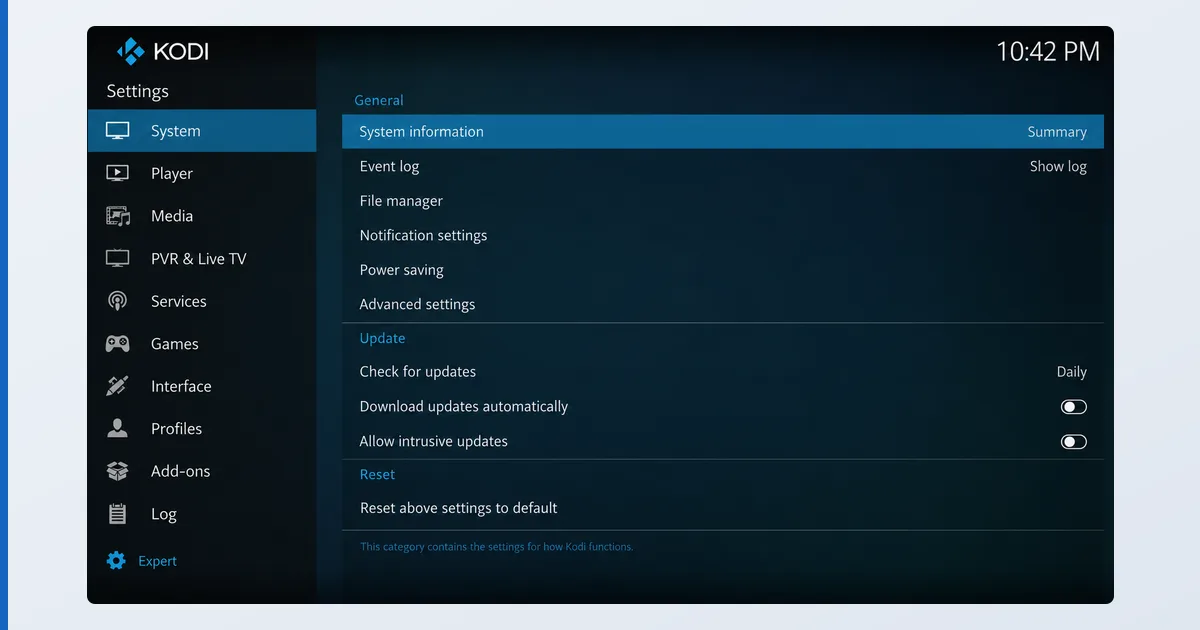
Before You Start
Kodi is self-contained — no server, no account. You just need the device and your media:
| Requirement | Detail |
|---|---|
| Device | Fire TV, Android TV, PC, Mac, Linux, Raspberry Pi |
| Install source | Official kodi.tv or an official app store only |
| Media | Local drive or network share (SMB/NFS) |
| Hardware | Modest — local playback is light |
| Add-ons | Official Kodi repository (built in) |
Step-by-Step
- Install Kodi. Download it only from kodi.tv or an official store — never a “build” or preloaded version. On Fire TV it may need sideloading.
- Add your media sources. Go to Videos → Files → Add videos, and browse to your folder on the device or a network share. Give it a name.
- Set the content type. Choose “This directory contains” Movies or TV Shows so Kodi scrapes artwork and metadata. Clean names (
Title (Year),Show S01E02) match best. - Let it scan. Kodi builds a library with posters and descriptions, just like other media apps.
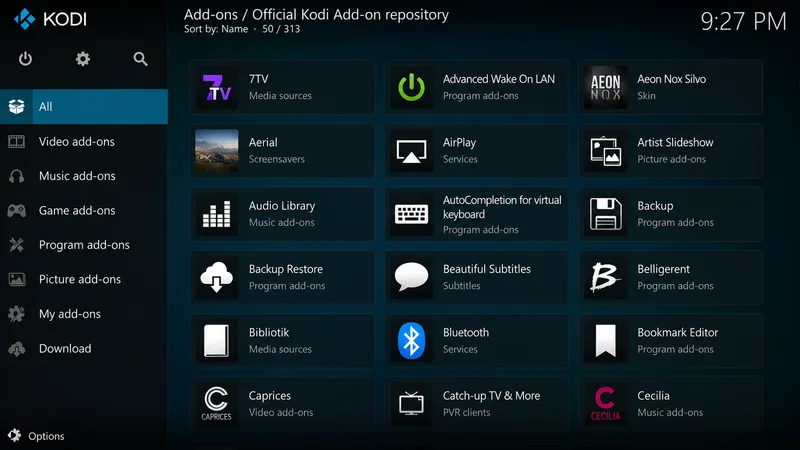
- Install official add-ons. Open Add-ons → Install from repository → Kodi Add-on repository, and add legitimate services, PVR backends or utilities. Use only the official repository.
- Optionally set a skin. Install a skin from the official repository to reshape the interface for your remote.
A Note on Add-on Safety
Kodi’s reputation problems come entirely from third-party add-ons, not Kodi itself. Unofficial repositories can carry malware, break on updates, and provide illegal streams. Our firm rule: install Kodi from the official site and use only the built-in official repository. If a guide tells you to enable “Unknown Sources” and paste a repo URL, stop — that’s the path to trouble. Kodi is a legitimate, legal media centre when used this way.
Troubleshooting
| Problem | Likely cause | Fix |
|---|---|---|
| No metadata/artwork | Content type not set | Set folder as Movies/TV; clean file names |
| Can’t see network share | Wrong path/credentials | Re-add via SMB/NFS with correct login |
| Add-on won’t install | Third-party repo/version | Use only the official repository |
| Playback stutters | Underpowered device / codec | Use a certified device; check the file |
| Interface hard to navigate | Default skin | Install a remote-friendly skin |
The Bottom Line
Kodi setup is simple and safe when done right: install from the official source, add your media and set the content type for clean metadata, and extend it only with official-repo add-ons. Done this way, it’s a powerful, legitimate media centre on a single screen. See the full Kodi review, compare it with a server in Kodi vs Plex, pick hardware in our best device for IPTV players guide, learn the basics in our sideloading explainer, and look up any term in the streaming glossary.