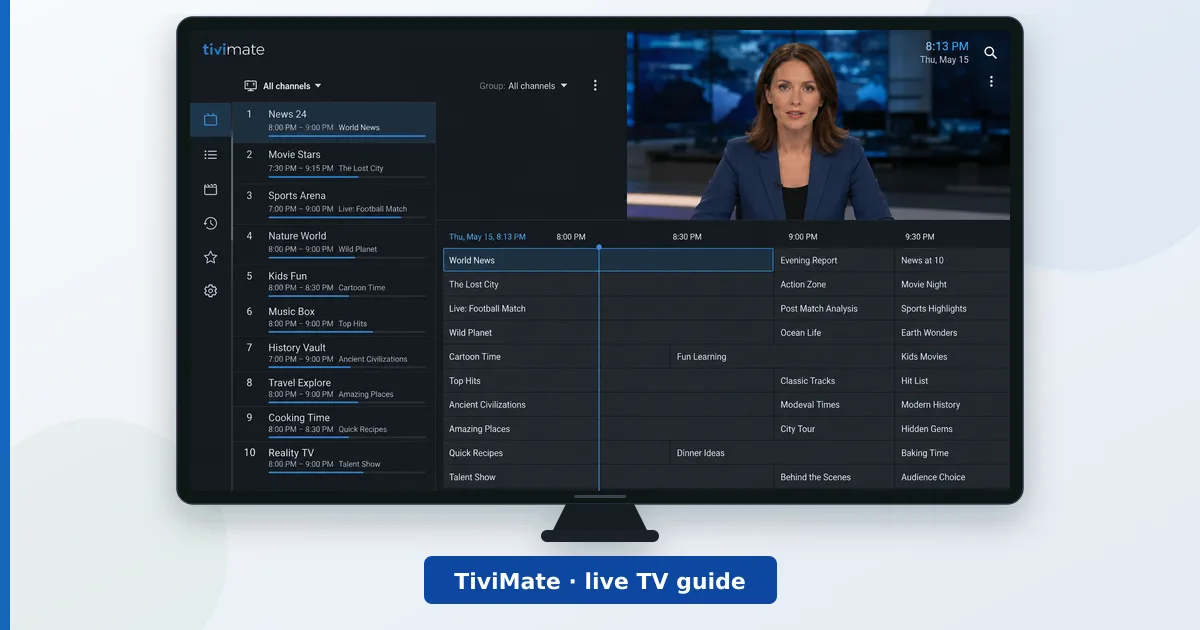
TiviMate is our top-rated IPTV player thanks to its set-top-box-style guide and remote-friendly design. This guide takes you from installation to a fully organised channel list in about 15 minutes, using a playlist from your TV provider.
What you need before starting:
- A Fire TV / Android TV / Google TV device — we use the Fire TV Stick 4K Max (≈ €79, check price)
- Your playlist URL (M3U) and EPG URL (XMLTV) from your TV provider
- 15 minutes
Step 1: Install TiviMate
- On Fire TV: open the Appstore, search “TiviMate”, select TiviMate IPTV Player and press Download.
- On Android/Google TV: open Google Play, search “TiviMate” and press Install.
- Open the app once installed. You’ll land on the welcome screen.
(Screenshot placeholder: TiviMate welcome screen)
Step 2: Add Your Playlist
- Select Add playlist on the welcome screen.
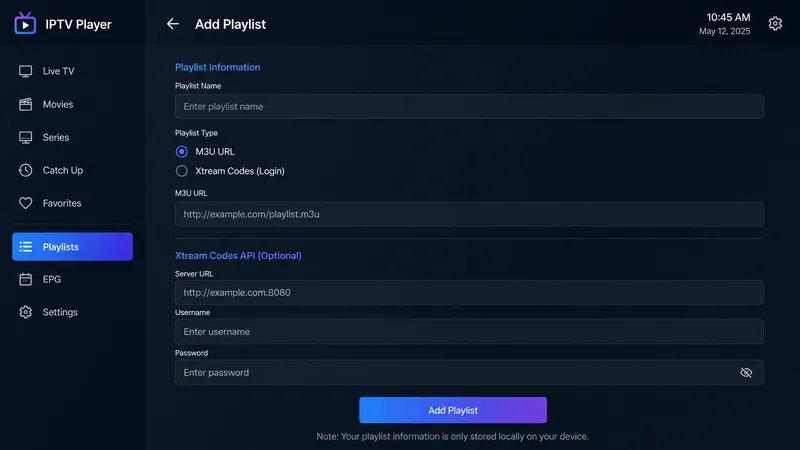
- Choose the type your provider gave you — for most people that’s M3U playlist; if you received portal credentials pick Xtream Codes login instead.
- M3U route: enter the playlist URL exactly as provided, then Next. TiviMate parses the channels (a few seconds to a minute for large lists).
- Xtream route: enter server address, username and password, then Next.
- Give the playlist a name and press Done.
(Screenshot placeholder: playlist URL entry)
Step 3: Add the EPG (TV Guide)
A good EPG is what makes TiviMate feel premium:
- Go to Settings → EPG.
- If your playlist embedded an EPG URL, it appears here automatically — just press Update EPG.
- Otherwise select Add EPG source and paste the XMLTV URL from your provider.
- Set Update interval to once per day (more frequent updates waste bandwidth).
If some channels show no programme data, your provider’s channel IDs may differ from the EPG’s — long-press the channel → Edit → assign the correct EPG entry.
Step 4: Organise Your Channels
Five minutes here pays off daily:
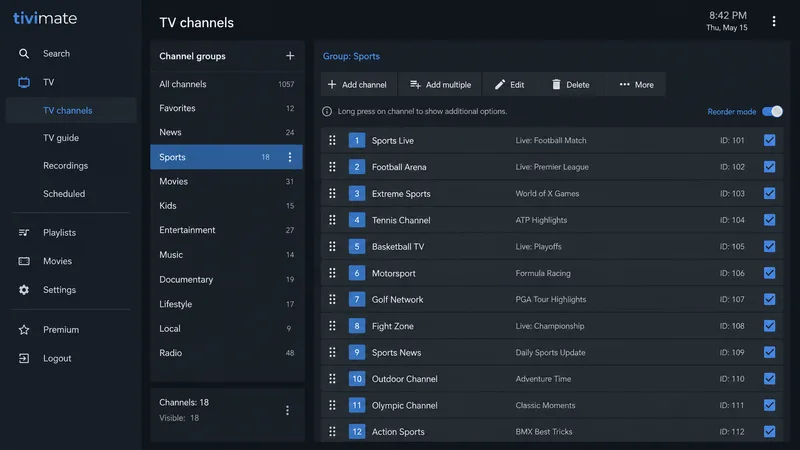
- Favourites: long-press any channel → Add to favourites. Your favourites become a separate quick-access category.
- Hide clutter: Settings → Playlists → your playlist → Manage channels — untick groups you never watch.
- Sort: in the same menu, drag categories into your preferred order.
- Channel numbers: Settings → Appearance lets you show numbers and adjust the guide layout density.
Step 5: Recommended Settings
- Settings → Playback → Buffer size: raise it one step if streams stutter on Wi-Fi.
- Settings → Playback → Decoder: leave on Hardware; switch a problem channel to Software via long-press → Video settings.
- Settings → General → Start on boot: handy if the TV is mainly used for live TV.
- Premium (≈ €10/year): unlocks multiple playlists, catch-up, recording and scheduled EPG updates — activate via Settings → Unlock premium.
Troubleshooting
| Problem | Fix |
|---|---|
| Channels won’t load | Re-check the playlist URL for typos; test it in VLC on a PC to confirm the source works |
| Empty EPG | Add/refresh the XMLTV source (Step 3); check ID matching |
| Buffering | Test bandwidth (4K needs ~25 Mbps); try Ethernet or Wi-Fi 6; raise buffer size |
| App feels slow | Restart the device; on older sticks, reduce guide animation in Appearance settings |
Persistent buffering on all channels usually points to the connection, not the app — our VPN on Fire TV guide also covers testing for ISP throttling.
Next Steps
- Running TiviMate on an underpowered device? See the best streaming devices we’ve tested.
- Want your own film/series library alongside live TV? Pair TiviMate with Plex or Jellyfin — compared in our streaming apps guide.