The fastest fix for a black screen or HDCP error is to reseat the HDMI cable at both ends, plug the streaming device directly into the TV, and try a different HDMI input — then restart both to force a fresh handshake. A black screen on protected content is almost always an HDCP handshake failure in the HDMI chain, not the app. This guide lists causes by likelihood, gives graduated diagnosis steps, and includes a diagnosis table and per-device fixes. It builds on our HDCP explained and HDMI versions guides.
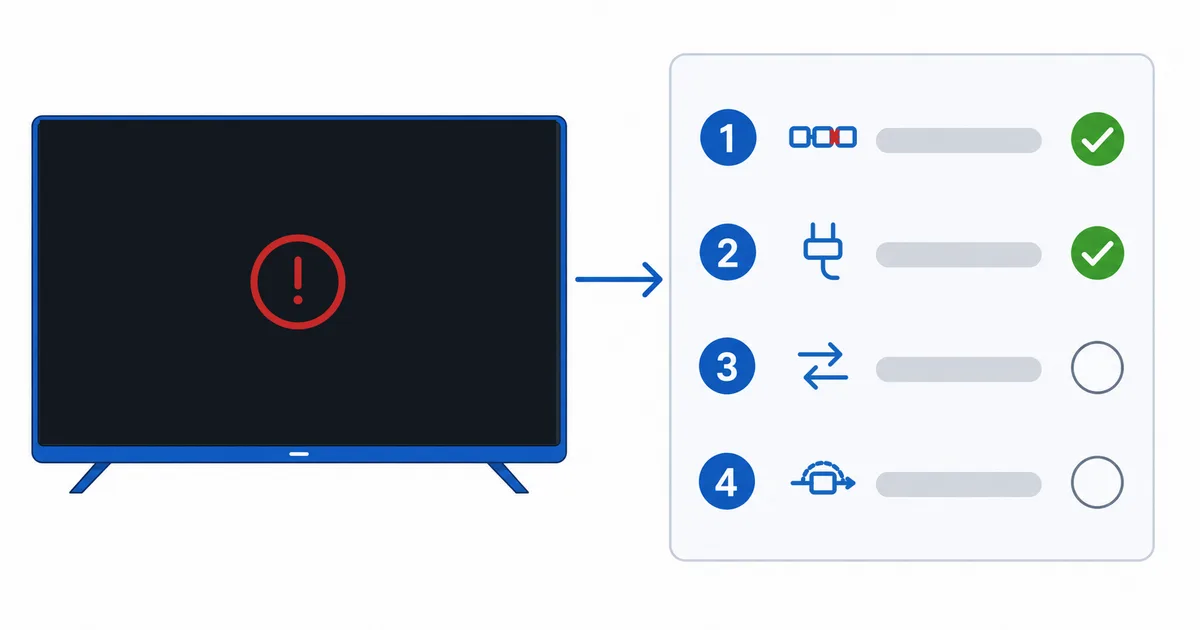
Causes, Most to Least Common
- Loose or faulty HDMI cable — the top cause of a failed HDCP handshake.
- AV receiver / soundbar / splitter in the chain — an extra link that breaks HDCP.
- Wrong or unsupported HDMI input — a port without HDCP 2.2 for 4K.
- Old cable for 4K/HDR — not High Speed enough for the signal.
- Temporary handshake glitch — cleared by a power-cycle.
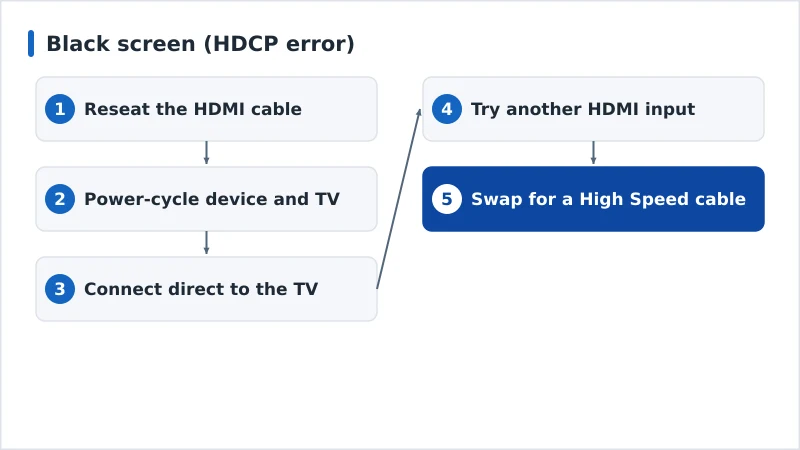
Diagnosis: Easiest First
- Reseat the HDMI cable firmly at both ends.
- Power-cycle the device and TV to force a fresh handshake.
- Connect the device directly to the TV, bypassing any receiver or soundbar.
- Try another HDMI input, ideally one marked for HDCP 2.2 / 4K.
- Swap the cable for a certified High Speed (or Ultra High Speed for 4K) one.
Diagnosis Table
| Symptom | Likely cause | Fix |
|---|---|---|
| Black screen on protected apps | HDCP handshake failure | Reseat cable; power-cycle; connect direct |
| Works direct, black via receiver | Receiver/soundbar breaks HDCP | Connect device straight to TV; check AVR HDCP |
| HD fine, 4K black | Input lacks HDCP 2.2 | Use an HDCP 2.2 / 4K HDMI input |
| Flicker or intermittent black | Faulty/long cable | Swap to a certified high-speed cable |
| Black after switching inputs | Temporary glitch | Power-cycle the device and TV |
By Device
- Fire TV / Android TV: connect directly to the TV first to isolate the chain; use an HDCP 2.2 input for 4K.
- Apple TV: in Settings → Video and Audio, avoid forcing a format the chain can’t do; try Match Content off if it black-screens.
- AV receiver / soundbar users: ensure the receiver’s HDMI supports the required HDCP version, or route the streaming device straight to the TV and audio separately.
- Smart TV: check you’re on an HDMI input that supports 4K/HDR; see our HDMI versions guide.
The Bottom Line
A black screen on protected content is an HDCP problem in the HDMI chain, not the app: reseat the cable, power-cycle, connect the device directly to the TV, and use an HDCP 2.2 input with a high-speed cable for 4K. An AV receiver or splitter is a common culprit — bypass it to test. Understand it in our HDCP explained and HDMI versions guides, fix related issues in our poor quality guide, pick a capable streaming device, and start from our streaming troubleshooting checklist, and look up any term in the streaming glossary.