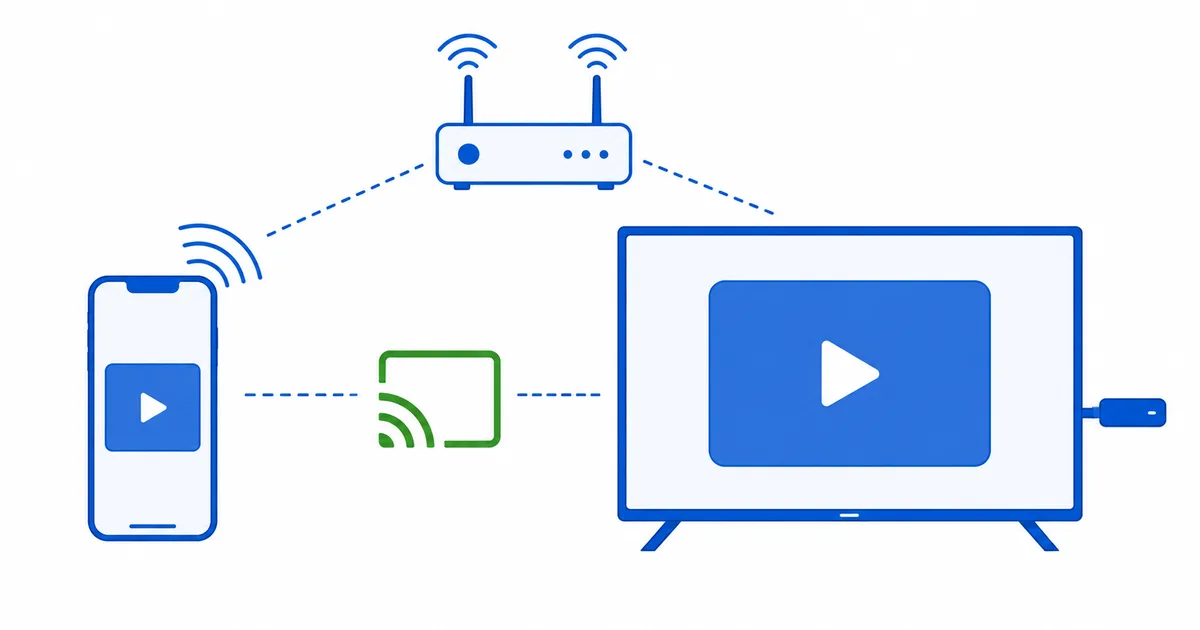
To mirror or cast your phone to a streaming device, put both on the same Wi-Fi network, then use AirPlay for Apple TV, Cast for Chromecast and Google TV, or screen mirroring for Fire TV. Casting sends a video stream (your phone stays free to use); mirroring shows your whole screen. This guide covers Android and iPhone step by step, plus a troubleshooting table. To pick a device, see our best streaming devices guide.
Before You Start
- Same Wi-Fi: the phone and the streaming device must be on the same network.
- Cast vs mirror: casting sends one video and frees your phone; mirroring shows your whole screen live.
- Updated software on both the phone and the streaming device avoids many issues.
From an iPhone (AirPlay)
- Same Wi-Fi. Put the iPhone and the target device on the same network.
- Cast a video (best for video). In a supported app, tap the AirPlay or cast icon and pick the device.
- Mirror the whole screen. Open Control Centre → Screen Mirroring and choose your Apple TV or an AirPlay-compatible TV.
AirPlay works best with an Apple TV 4K; many modern TVs also support AirPlay directly.
From an Android Phone (Cast)
- Same Wi-Fi. Put the Android phone and the device on the same network.
- Cast a video. In a supported app, tap the Cast icon and choose your Chromecast, Google TV or compatible device.
- Mirror the screen. Use Smart View / Cast in quick settings and select the device.
For Fire TV: hold Home (or Settings → Display and Sounds → Enable Display Mirroring), then cast from the phone.
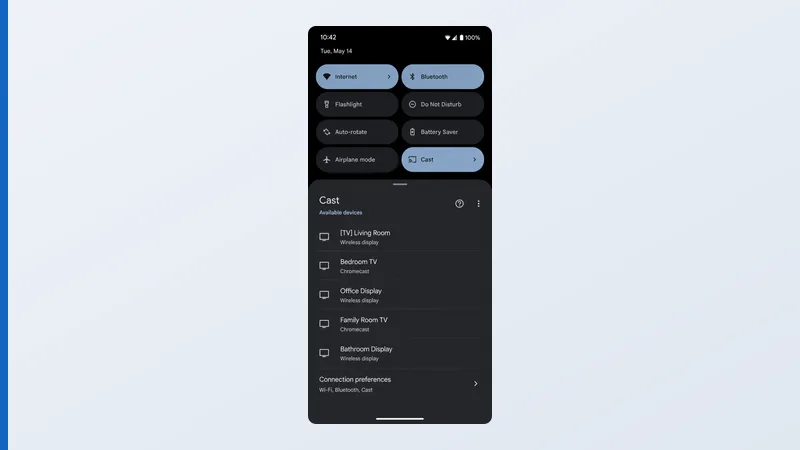
Tip: for watching video, cast rather than mirror — it streams directly to the device for smoother, higher-quality playback and lets you keep using your phone.
Troubleshooting
| Problem | Likely cause | Fix |
|---|---|---|
| Device not appearing | Different Wi-Fi networks | Put both on the same network |
| Mirroring option missing | Not enabled on the device | Enable display mirroring in settings |
| Choppy or laggy mirror | Weak Wi-Fi | Move closer to the router or cast instead |
| App won’t cast | App blocks casting | Cast a different app, or mirror instead |
| Can’t AirPlay to Apple TV | Software or restrictions | Update both; check AirPlay access settings |
The Bottom Line
Mirroring or casting your phone comes down to the right method for your device — AirPlay for Apple, Cast for Google, screen mirroring for Fire TV — with both devices on the same Wi-Fi. For video, casting is smoother and keeps your phone free; for photos, apps and presentations, full mirroring is the way. If it won’t connect, a shared network and a quick restart fix almost everything.
Choose the right hardware in our best streaming devices guide, compare platforms in Android TV vs Google TV vs Fire OS, and look up any term in the streaming glossary.