The fastest fix for a device not connecting to Wi-Fi is to reboot the router, restart the device, and re-enter the password carefully — most failures are a wrong password, a temporary router glitch, or a band mismatch. This guide lists causes by likelihood, gives graduated diagnosis steps, and includes a diagnosis table and per-device fixes. It relates to our weak Wi-Fi guide and router settings guide.
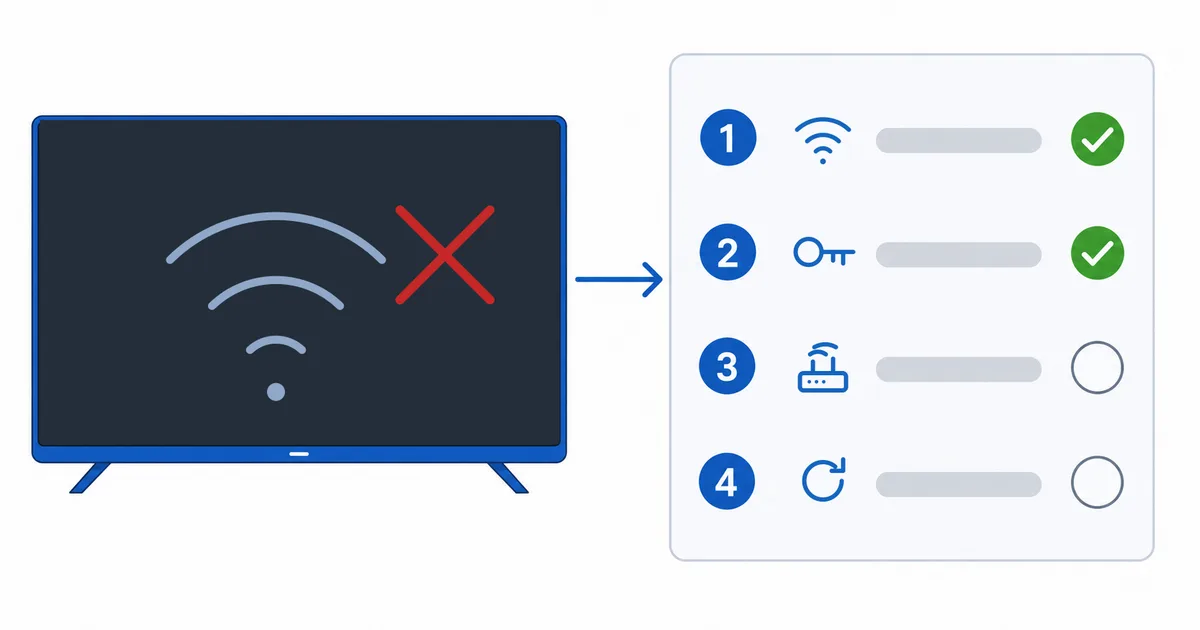
Causes, Most to Least Common
- Wrong password — the most common; easy to mistype on a TV keyboard.
- Router glitch — needs a reboot to clear.
- Band mismatch — device only sees 2.4 GHz, or the network is 5 GHz-only/hidden.
- IP / DHCP issue — connects but no internet; needs a fresh IP.
- MAC filter / full router — blocked or too many devices connected.
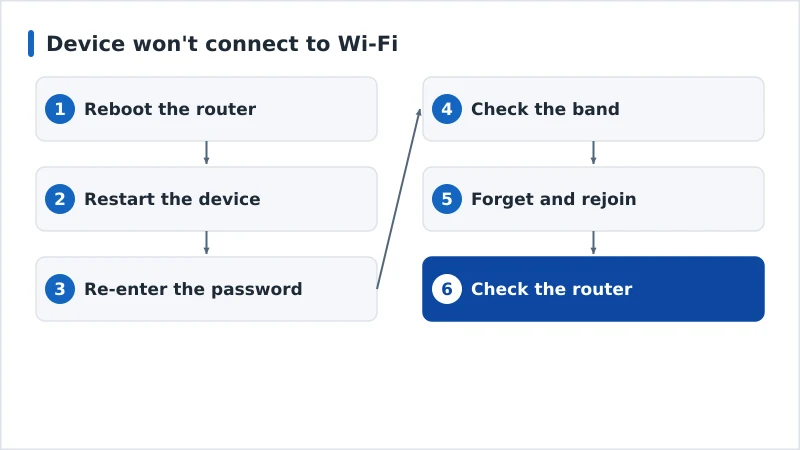
Diagnosis: Easiest First
- Reboot the router — off 30 seconds, then on; clears most glitches.
- Restart the device and retry.
- Re-enter the password carefully — watch case and confusable characters.
- Check the band — ensure the device supports the network’s band; move closer if signal is weak.
- Forget and rejoin the network so the device gets a fresh IP.
- Check the router — MAC filtering off, not too many devices, firmware updated.
Diagnosis Table
| Symptom | Likely cause | Fix |
|---|---|---|
| “Incorrect password” | Typo / wrong SSID | Re-enter carefully; confirm the network |
| Network not listed | Band mismatch / hidden SSID | Ensure supported band; unhide SSID; move closer |
| Connected, no internet | IP/DHCP or router | Reboot router; forget and rejoin |
| Drops repeatedly | Weak signal / router load | Improve signal; reboot; update firmware |
| Only this device fails | MAC filter / device glitch | Check router filter; restart the device |
By Device
- Fire TV: Settings → Network — forget the network and rejoin; use the on-screen keyboard carefully.
- Apple TV: Settings → Network — rejoin; ensure the right band; restart.
- Android TV / Google TV: Settings → Network & Internet — forget and reconnect.
- Smart TV: re-enter the password in network settings; update TV firmware; a dedicated device can be more reliable if the TV’s Wi-Fi is flaky.
The Bottom Line
A device that won’t connect to Wi-Fi is usually a password, a router glitch, or a band mismatch: reboot the router, restart the device, re-enter the password carefully, confirm the band, and forget-and-rejoin for a fresh IP. If only one device fails, check the router’s filters and device limits. For weak or dropping signal, see our weak Wi-Fi guide and router settings guide; understand connections in our Wi-Fi vs Ethernet guide; pick a device in our best streaming devices guide; and start from our streaming troubleshooting checklist, and look up any term in the streaming glossary.