To set up a VPN on your router, confirm the router supports a VPN client, get your VPN’s manual configuration details, enter them in the router’s VPN settings, connect to a server, and test — then every device on your network is protected. This step-by-step guide covers firmware, credentials and the connection, plus a troubleshooting table. For which VPNs work best on routers, see our best VPN for router guide.
Before You Start
- A compatible router — one running AsusWRT, OpenWrt, DD-WRT or Tomato, or a purpose-built VPN router. Many basic ISP routers can’t run a VPN client.
- Your VPN’s manual configuration details — server address plus service credentials or a config file, from your VPN dashboard (not the app login).
- Router admin access — the login for your router’s settings page.
- Decide it’s worth it — a router VPN suits whole-home coverage; for one or two devices, a native app is simpler.
Step-by-Step
- Check router compatibility. Confirm your router supports a VPN client via its firmware, or use a purpose-built VPN router.
- Get manual configuration details. In your VPN account, find the manual setup details — server address, protocol, and service credentials or a config file.
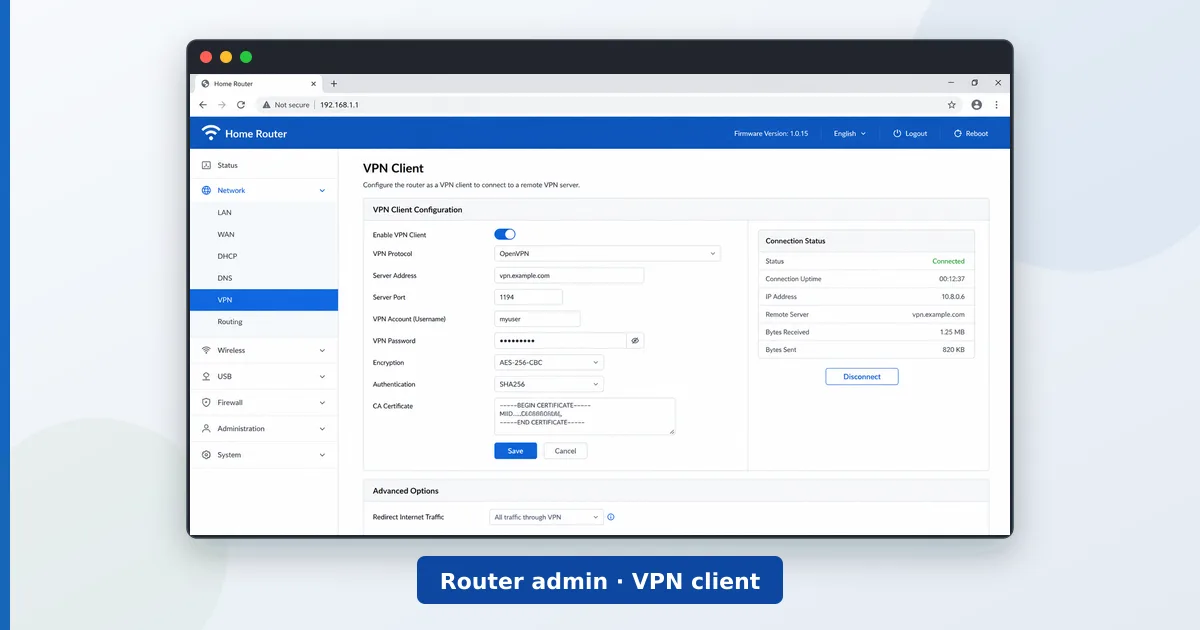
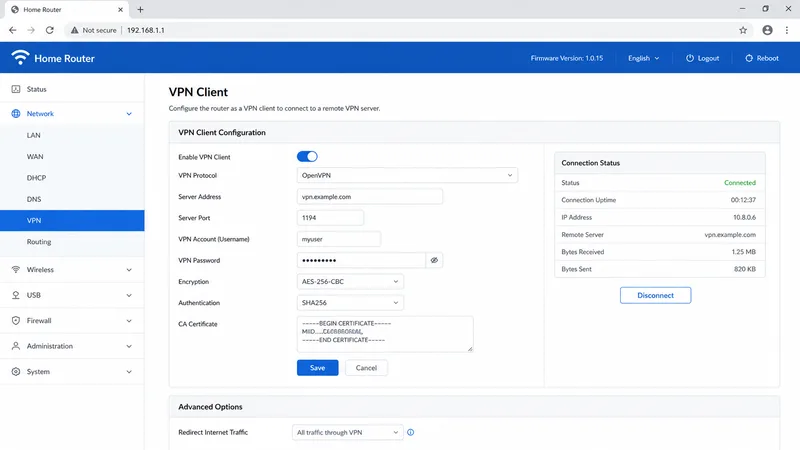
- Open the router VPN settings. Sign in to your router admin page (often 192.168.1.1) and open the VPN client section.
- Enter the details. Enter the server address, protocol and credentials exactly as provided, and save.
- Connect and test. Connect the VPN, then confirm on a device that the connection is active and streaming works.
Easier option: some VPNs offer a dedicated router app or a pre-configured router (like ExpressVPN's Aircove) that removes the manual steps — see the best VPN for router guide.
Troubleshooting
| Problem | Likely cause | Fix |
|---|---|---|
| Won’t connect | Wrong credentials / server | Re-check details against the VPN dashboard |
| No VPN client option | Firmware unsupported | Flash compatible firmware or use a VPN router |
| Slow speeds | Underpowered router | Use a nearby server; a more powerful router |
| Some sites break | DNS or MTU issue | Set the VPN’s DNS; adjust MTU if needed |
| Can’t reach router page | Wrong admin address | Check the router’s default gateway address |
The Bottom Line
Setting up a VPN on your router protects every device at home — including those that can’t run VPN apps — in one configuration. Confirm your router supports a VPN client, enter the manual details from your VPN dashboard exactly, connect and test. Expect a speed hit from the router’s encryption, so use a capable router and a nearby server. If it feels too involved for one or two devices, a native app is simpler.
Choose the right service in the best VPN for router guide, tune your network with the router settings guide, and look up any term in the streaming glossary.