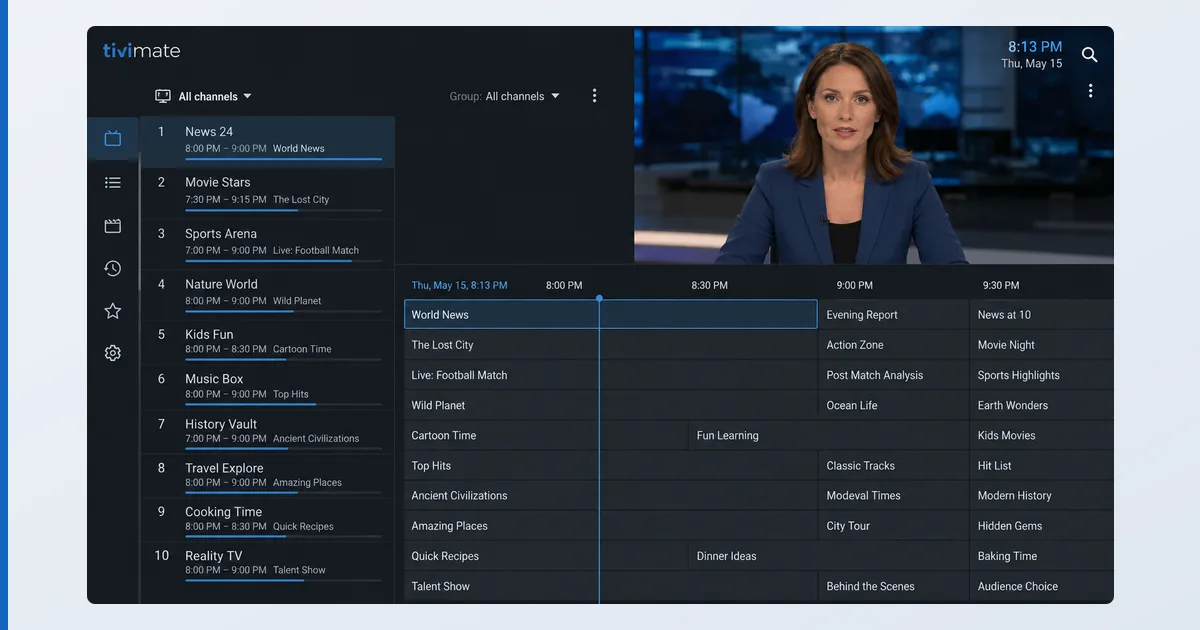
To set up an EPG, get the XMLTV guide URL from your IPTV provider, add it as an EPG source in your player’s settings, and let it match programmes to your channels by their IDs. The guide data comes from your provider — the player just displays it. This guide covers adding an EPG in TiviMate, IPTV Smarters and OTT Navigator, fixing channel-ID mismatches, and a troubleshooting table. It pairs with our how to add an M3U playlist guide.
Before You Start
You need an XMLTV EPG source from your provider and a player that supports it:
| You need | Detail |
|---|---|
| EPG source | An XMLTV URL/file from your provider |
| Matching playlist | Your M3U or Xtream already loaded |
| Player | TiviMate, IPTV Smarters, OTT Navigator (not VLC) |
| Correct time zone | Set on the device, so the guide aligns |
Step-by-Step (by Player)
TiviMate
- Open Settings → EPG → Add EPG source.
- Paste the XMLTV URL and download it.
- Let TiviMate auto-match by channel ID; assign sources manually for any blank channels.
IPTV Smarters
- If using Xtream Codes, the EPG usually loads automatically.
- For M3U, add the XMLTV URL under EPG settings and refresh.
OTT Navigator
- Open playlist settings → EPG, add the XMLTV URL.
- Enable auto-matching, then check the guide populates.
How Matching Works
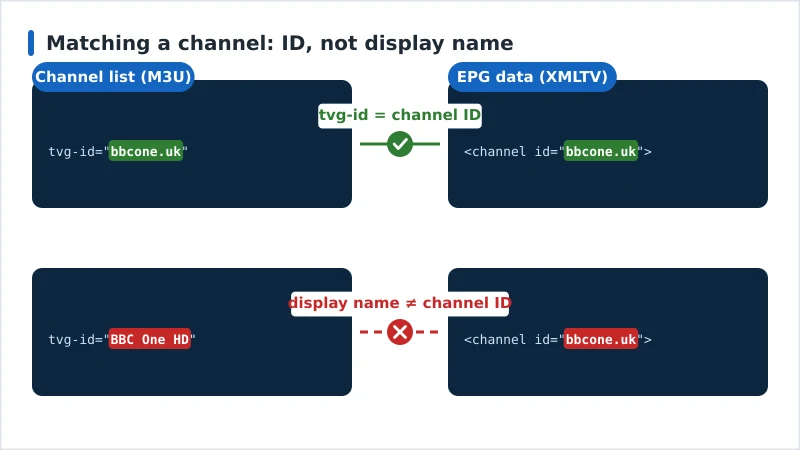
An EPG attaches programmes to channels using channel IDs — the tvg-id in your playlist must match the id in the XMLTV data, character for character:
tvg-id="bbcone.uk"    =  <channel id="bbcone.uk">   ✓
tvg-id="BBC One HD"   ≠  <channel id="bbcone.uk">   ✗
When they line up, the guide fills automatically. The second line is the usual failure: the playlist carries the channel’s display name instead of its ID, so the player has nothing to attach the schedule to and the channel shows no programmes. The fix is to use the EPG your provider recommends for that playlist, enable auto-matching, or map channels to EPG sources manually in the player.
Troubleshooting
| Problem | Likely cause | Fix |
|---|---|---|
| No guide at all | EPG source not added | Add the XMLTV URL in EPG settings |
| Some channels blank | Channel-ID mismatch | Auto-match or map channels manually |
| Wrong programmes shown | Mismatched IDs | Use the provider’s recommended EPG |
| Times are off | Wrong device time zone | Set the correct time zone on the device |
| Guide slow to load | Very large XMLTV file | Limit to fewer days if the player allows |
The Bottom Line
Setting up an EPG is quick: take the XMLTV URL from your provider, add it as an EPG source in a proper IPTV player, and let it match programmes to channels by their IDs. Mismatched IDs are the usual culprit behind a blank guide — use the provider’s recommended EPG and auto-matching. Learn the background in what an EPG is, add your playlist with our M3U playlist guide, organise your channels in our TiviMate channels guide, see the TiviMate review, and look up any term in the streaming glossary.