To set up Emby, install the server on an always-on computer or NAS, add and name your media libraries, optionally connect a TV tuner for live TV and DVR, and enable transcoding and remote access. The core setup is free; hardware transcoding and some features need Emby Premiere. This guide covers the hardware, library organisation, Emby’s strong live TV/DVR, transcoding and remote access. For the full app assessment, see our Emby review.
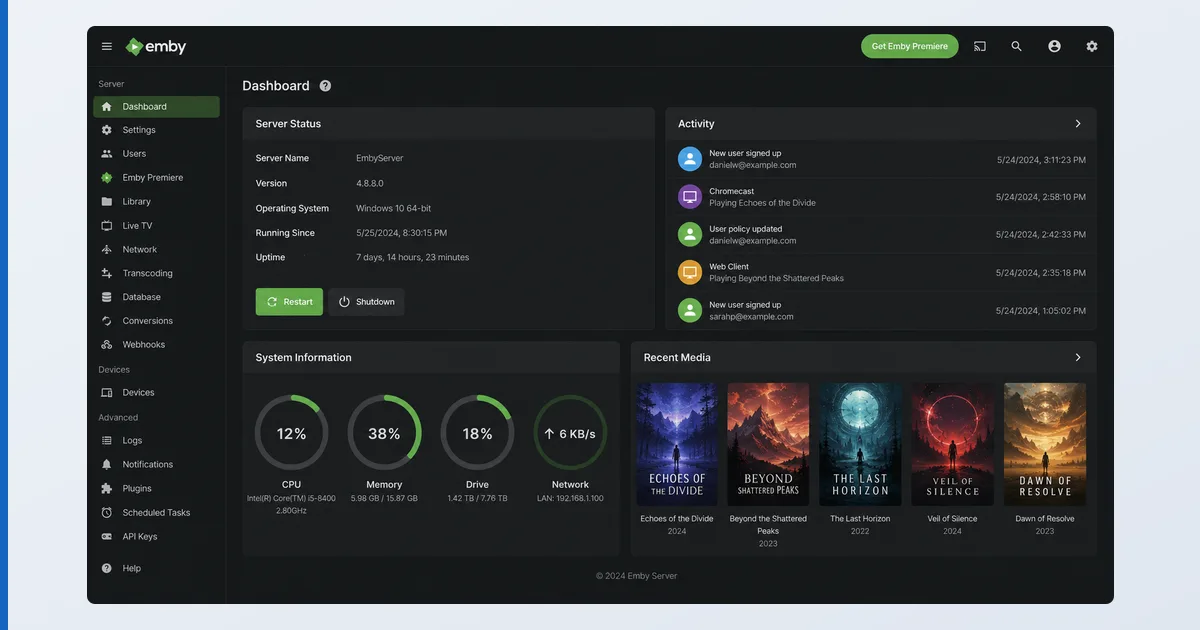
Before You Start
You need a media server host that stays on, storage, and — for live TV — a tuner:
| Component | Minimum | Recommended |
|---|---|---|
| Host | PC, Mac or NAS, always on | Dedicated NAS or mini-PC |
| CPU | Modest (direct play) | Capable CPU/GPU (transcoding) |
| Storage | Enough for your media | NAS with redundancy (RAID) |
| Live TV | — | Compatible TV tuner + antenna |
| Network | Wi-Fi | Wired Ethernet to the server |
| Cost | Free core | Emby Premiere for hardware transcode |
Step-by-Step
- Install the Emby server. Download Emby Server for your host (Windows, macOS, Linux, Synology, QNAP) and install it on the machine that holds your media.
- Run the first-time wizard. Create your administrator user and set preferences.
- Add your libraries. Add Movies and TV Shows libraries pointing at cleanly named folders —
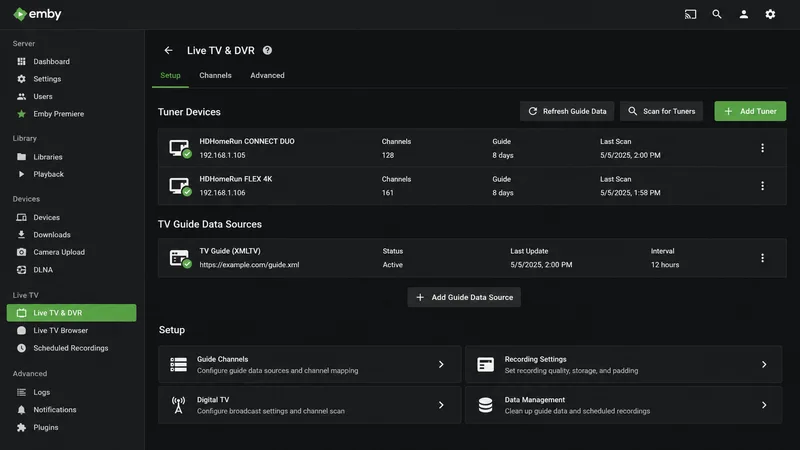
Film (Year),Show/Season 01/Show - S01E02— for accurate metadata. - Set up live TV and DVR. Connect a supported TV tuner, then in Live TV add the tuner and a guide-data source for a full EPG and scheduled recording — an Emby strength.
- Enable transcoding. Configure hardware transcoding (needs Emby Premiere) under Transcoding; otherwise software transcoding works but is CPU-heavy.
- Enable remote access and test. Under Network, turn on remote access and forward port 8096; then confirm playback on a TV device.
Direct Play vs Transcoding
Like other servers, Emby is smoothest on direct play — the client playing your file as-is. Transcoding converts on the fly and is CPU-heavy; hardware acceleration requires Emby Premiere. Store device-friendly formats (H.264/HEVC in MP4/MKV) to keep playback direct, and reserve transcoding for devices or connections that truly need it.
Troubleshooting
| Problem | Likely cause | Fix |
|---|---|---|
| Server not reachable | Firewall / wrong address | Use host IP:8096; allow through firewall |
| Wrong artwork/title | File naming | Rename to Title (Year); refresh metadata |
| No live TV guide | Missing guide data | Add a guide-data source in Live TV |
| Transcoding gated | No Emby Premiere | Subscribe to Premiere for hardware transcode |
| Remote access fails | Port not forwarded | Forward 8096 or use a reverse proxy |
The Bottom Line
Emby sets up much like Plex, with the bonus of excellent built-in live TV and DVR: install the server, add cleanly named libraries, connect a tuner if you want over-the-air recording, and enable transcoding and remote access. The core is free; add Premiere only for hardware transcoding and extras. See the full Emby review, compare it in Plex vs Emby, pick hardware in our best device for Plex guide, understand the tech in our transcoding explainer, and look up any term in the streaming glossary.