| # | Product | Rating | Price | |
|---|---|---|---|---|
| 1 | Amazon Fire TV Stick (with Alexa remote)Easiest to Use | ≈ €45 | Check Price | |
| 2 | Apple TV 4K (Siri Remote)Simplest for Apple Users | ≈ €169 | Check Price |
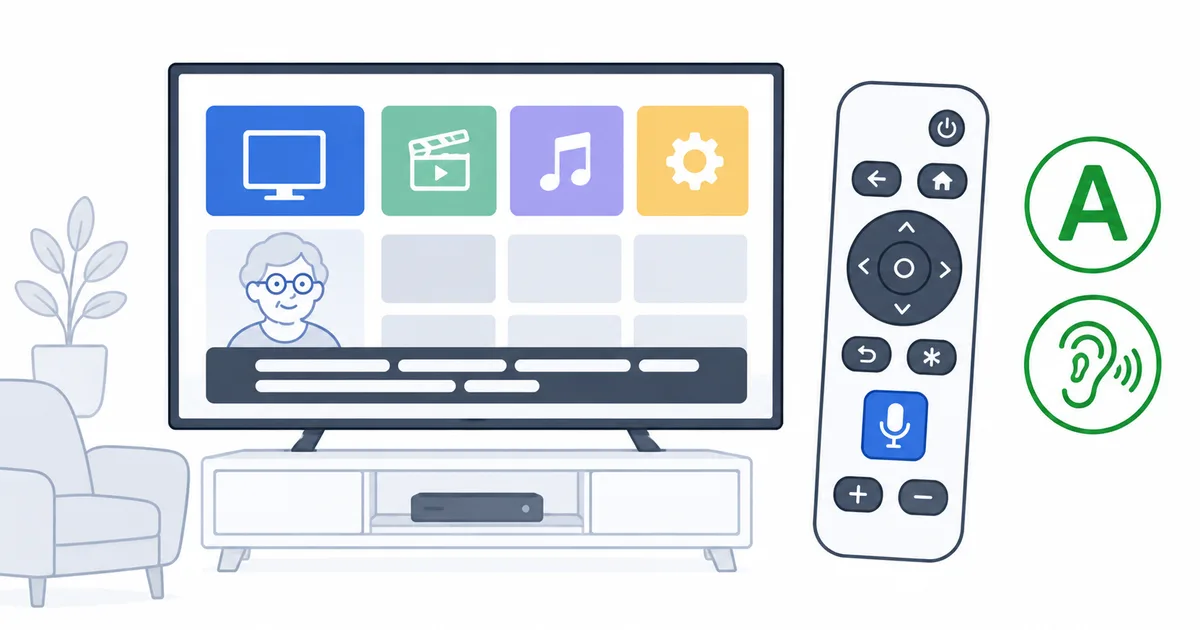
The simplest streaming setup for a senior is an easy device with a voice remote — like the Fire TV Stick with Alexa or the Apple TV with Siri — pre-configured with only the needed apps, large high-contrast subtitles, and clear-voice audio. Voice control removes the hardest part: navigating menus. This guide covers the easiest device, accessibility settings, very simple setup steps, a problem-and-fix table, and tips for whoever helps a parent set it up.
The Easiest Device
Choose a device with a simple remote and voice control:
- Fire TV Stick with the Alexa voice remote (≈ €45) — just say what to watch; fewer, larger buttons than a cable remote.
- Apple TV 4K with the Siri Remote (≈ €169) — simplest for existing Apple users.
Both avoid the fiddly menus that make streaming hard for older users. See the best streaming devices guide for more.
Check Fire TV Stick on Amazon →
Accessibility Settings
Turn these on to make streaming easy to see and hear:
- Large, high-contrast subtitles — bigger text with a solid background; see our subtitles setup guide.
- Bigger interface text — where the device offers it.
- Clear-voice / dialogue audio mode — on the TV or soundbar, so speech is easy to follow.
- A comfortable default volume and an uncluttered home screen with only the apps used.
Very Simple Setup Steps
- Install the device and connect it to the TV and Wi-Fi (do this for them).
- Sign in to the two or three apps they’ll actually use.
- Remove clutter — keep only those apps on the home screen; put the favourite first.
- Turn on large subtitles and clear-voice audio; set the volume.
- Show voice control — press the voice button and say a show’s name.
- Label the few buttons they need, and write a short plain-language card.
Problem and Simple Fix
| Problem | Simple fix |
|---|---|
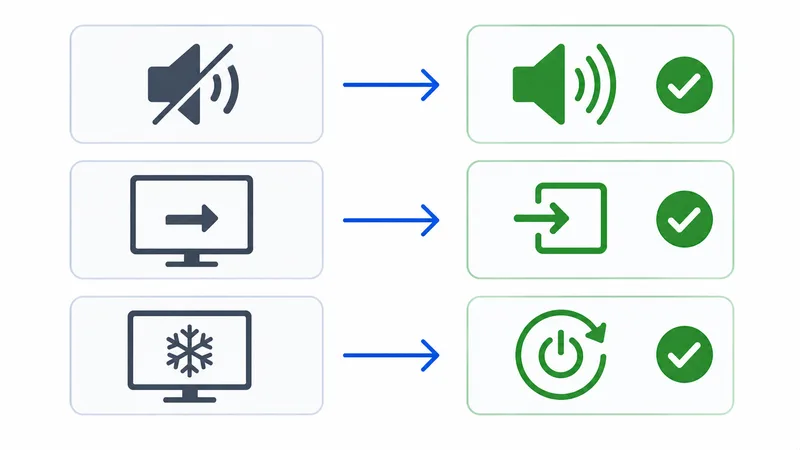
| “Nothing happens” | Check the TV is on the right HDMI input |
| “The remote won’t work” | Replace the batteries; hold Home to re-pair |
| “It keeps stopping” | Move closer to the router, or wire it up |
| “The words are too small” | Turn on large subtitles in settings |
| “I can’t hear the talking” | Turn on clear-voice mode; raise the volume |
| “I can’t find my show” | Press the voice button and say its name |
Tips for Whoever Helps
- Do the setup fully — sign in, declutter, set subtitles and audio before handing it over.
- Keep it to 2–3 apps — fewer choices means less confusion.
- Rely on voice — it’s the easiest control by far.
- Write a plain card for the few daily actions.
- Fix issues remotely — many devices let you help via a phone app.
The Bottom Line
Streaming for seniors is about ruthless simplicity: an easy device with a voice remote, only the needed apps, large subtitles and clear-voice audio, all set up in advance. Voice control removes the hardest part. If something goes wrong, the fixes are simple — usually the HDMI input, batteries, or Wi-Fi. Pick a device in our best streaming devices guide, set up subtitles with our subtitles setup guide, fix signal in our weak Wi-Fi guide, follow the full streaming setup checklist, and look up any term in the streaming glossary.