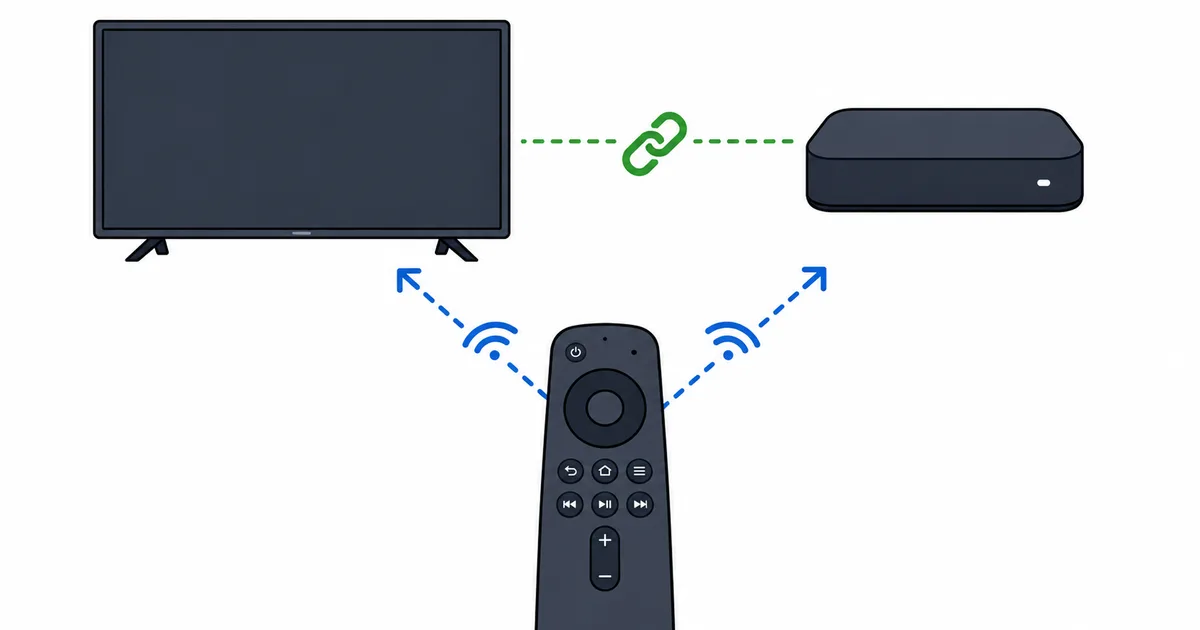
To set up a universal remote for streaming, enable HDMI-CEC on your TV and run your streaming remote’s equipment-control setup — this lets one remote control TV power, volume and input alongside the streaming device. For a dedicated universal remote, enter your brand codes or run its automatic search. This guide covers CEC, infrared and app options step by step, plus a troubleshooting table. To pick a device, see our best streaming devices guide.
Before You Start
Decide which route fits you:
- Your streaming remote controlling the TV — easiest; uses HDMI-CEC and infrared. Works with Fire TV, Google TV and Apple TV remotes.
- A dedicated universal remote — one clicker for TV, streaming device, soundbar and more.
- A phone app — a free backup that controls the device over Wi-Fi.
You will need your TV and streaming remotes, the TV’s settings menu, and brand/model details if using a universal remote.
Option 1: Use HDMI-CEC (Easiest)
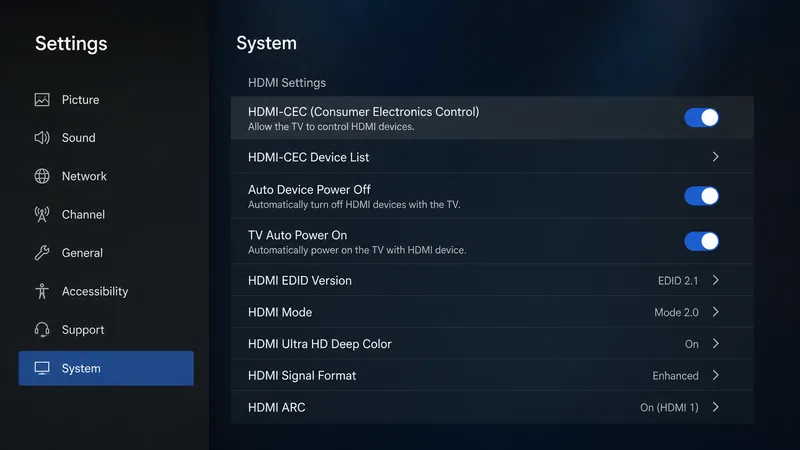
- Enable HDMI-CEC in your TV settings. Brands name it differently — Anynet+ (Samsung), Bravia Sync (Sony), Simplink (LG) and others.
- Run the remote’s TV setup. In the streaming device settings, run equipment control or set up your TV to pair power and volume.
- Test. Confirm the remote powers the TV, changes volume, and switches to the right HDMI input.
Option 2: A Dedicated Universal Remote
- Put it in setup mode following its instructions.
- Enter brand codes for your TV and streaming device, or run the automatic code search.
- Assign functions — power, volume, input and playback — to the right buttons.
- Test each device and re-run the search if any function is wrong.
Option 3: A Phone App (Backup)
Install the platform’s remote app — the Fire TV app, Google TV app, or the Apple TV Remote in the iPhone Control Centre. It controls the device over Wi-Fi and adds a keyboard for easy text entry. Handy if you lose the remote.
Troubleshooting
| Problem | Likely cause | Fix |
|---|---|---|
| Remote won’t control TV | CEC off / wrong code | Enable HDMI-CEC; re-run TV setup or code search |
| Power works, volume doesn’t | Volume not paired | Re-run equipment control; check IR line of sight |
| Wrong input on power-on | CEC input mapping | Set the correct HDMI input in TV CEC settings |
| Intermittent response | Weak batteries / blocked IR | Replace batteries; clear line of sight |
| App remote won’t connect | Different Wi-Fi | Put phone and device on the same network |
The Bottom Line
For most people the simplest universal remote is the one you already have: enable HDMI-CEC on the TV, run your streaming remote’s equipment-control setup, and it will handle TV power, volume and input too. A dedicated universal remote suits bigger setups with a soundbar and several sources, and the platform’s phone app is a free backup. Test power, volume and input switching, and you have one-remote control of your whole streaming setup.
Pick your device in the best streaming devices guide, understand inputs in HDMI versions explained, and look up any term in the streaming glossary.